Store team passwords safely in the zero-knowledge vault
Keep shared logins, API keys and client credentials in an encrypted vault — locked on your device, unreadable to the server.
Published 11 June 2026 · 5 min read · Fada
Every small team has a few passwords that end up in the wrong place: the shared inbox login pasted into a chat thread, the client's hosting password sent in a message that anyone can scroll back to, the API key copied into a note nobody can find later. It works until someone leaves, or someone screenshots the wrong conversation.
Fada gives you a safer home for all of it: an encrypted vault that lives inside your workspace. The clever part is that your secrets are scrambled on your own device before they ever leave it, so even Fada's servers can't read them. This guide walks you through setting one up and adding your first secret — it takes about two minutes.
What "zero-knowledge" actually means
Zero-knowledge is a plain promise: the people running the server cannot see your data. When you save something to the vault, your device encrypts it first, using a passphrase only you know. The server receives and stores nothing but a scrambled blob it has no way to unlock. No admin, no support agent, and no attacker who breaks into the server can read your passwords — because the readable version never existed there in the first place.
The practical upshot is the line we keep coming back to: the safe option — never pasting a password into a chat thread — is finally the convenient one too.
Step 1 — Open the vault and pick a passphrase
Open the Vault tab in the left rail. The very first time you do this, Fada asks you to choose a vault passphrase. Make it at least 8 characters, and make it something you don't use anywhere else — this passphrase is the key that locks and unlocks everything inside.
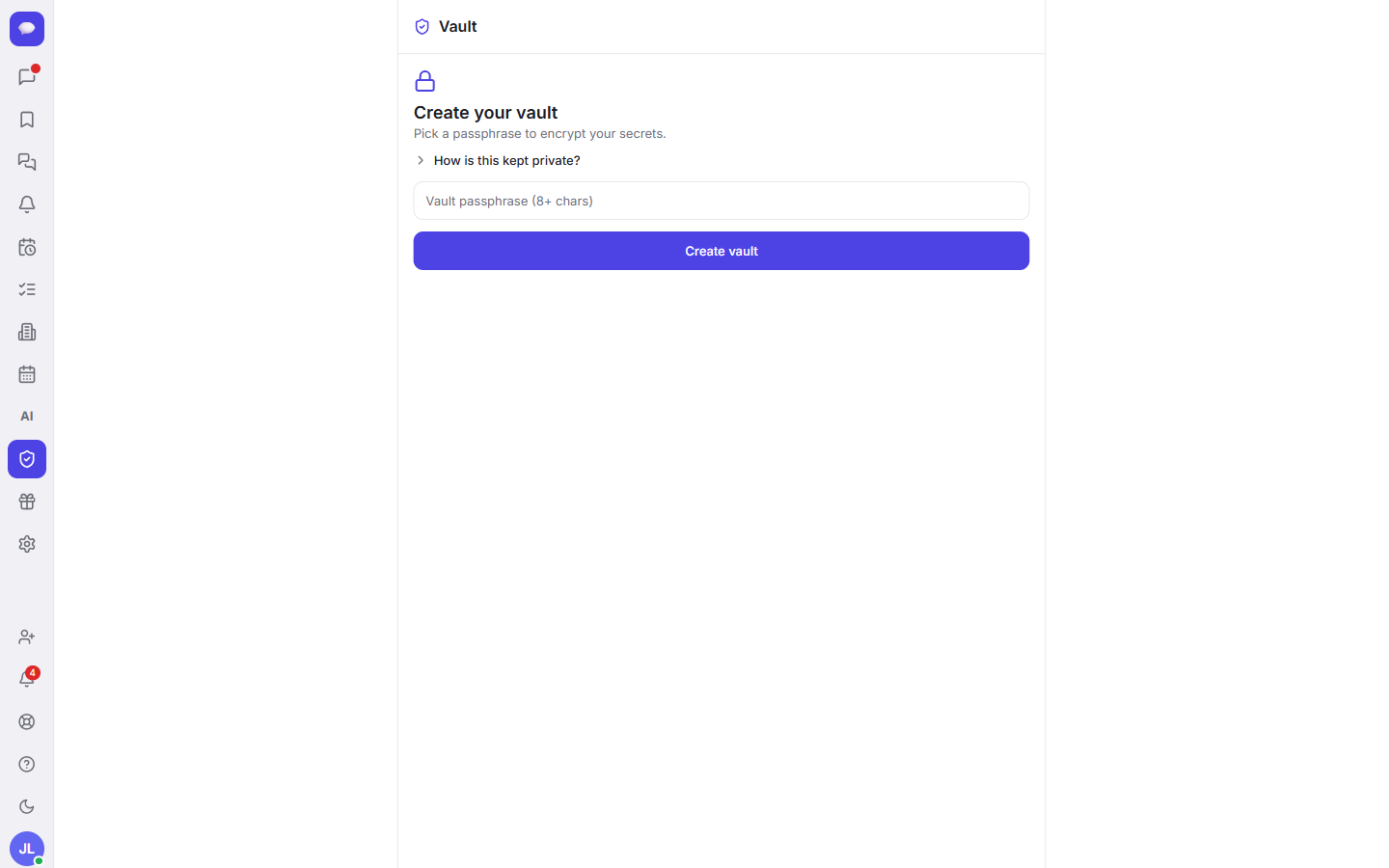
One important thing to understand: because your secrets are encrypted with this passphrase on your device, there is no "forgot password" reset that can magically recover the contents. Pick something memorable, and keep a record of it somewhere safe and offline.
Step 2 — Add your first secret
Once your vault is open, select Add and choose the type that fits what you're storing:
- Login — a username and password for a shared account
- API key — a key or token for a service your team uses
- Note — any free-form secret text
- SSH key — a key for connecting to a server
- TOTP secret — the seed behind a one-time authentication code
Then fill in the fields: a Name so you can find it later, a Username if it has one, the Secret value itself, and an optional URL for where it's used. When you're done, select Save encrypted.
That last button name is doing real work. The moment you save, your device encrypts the secret and only then sends it onward. The server stores the scrambled version and nothing else.
Step 3 — Reveal a secret when you need it
Back in your vault list, a stored secret stays hidden by default — you'll see the entry's name, but the value is masked. When you actually need it, select the reveal (eye) icon to show it, then copy it where it's needed.
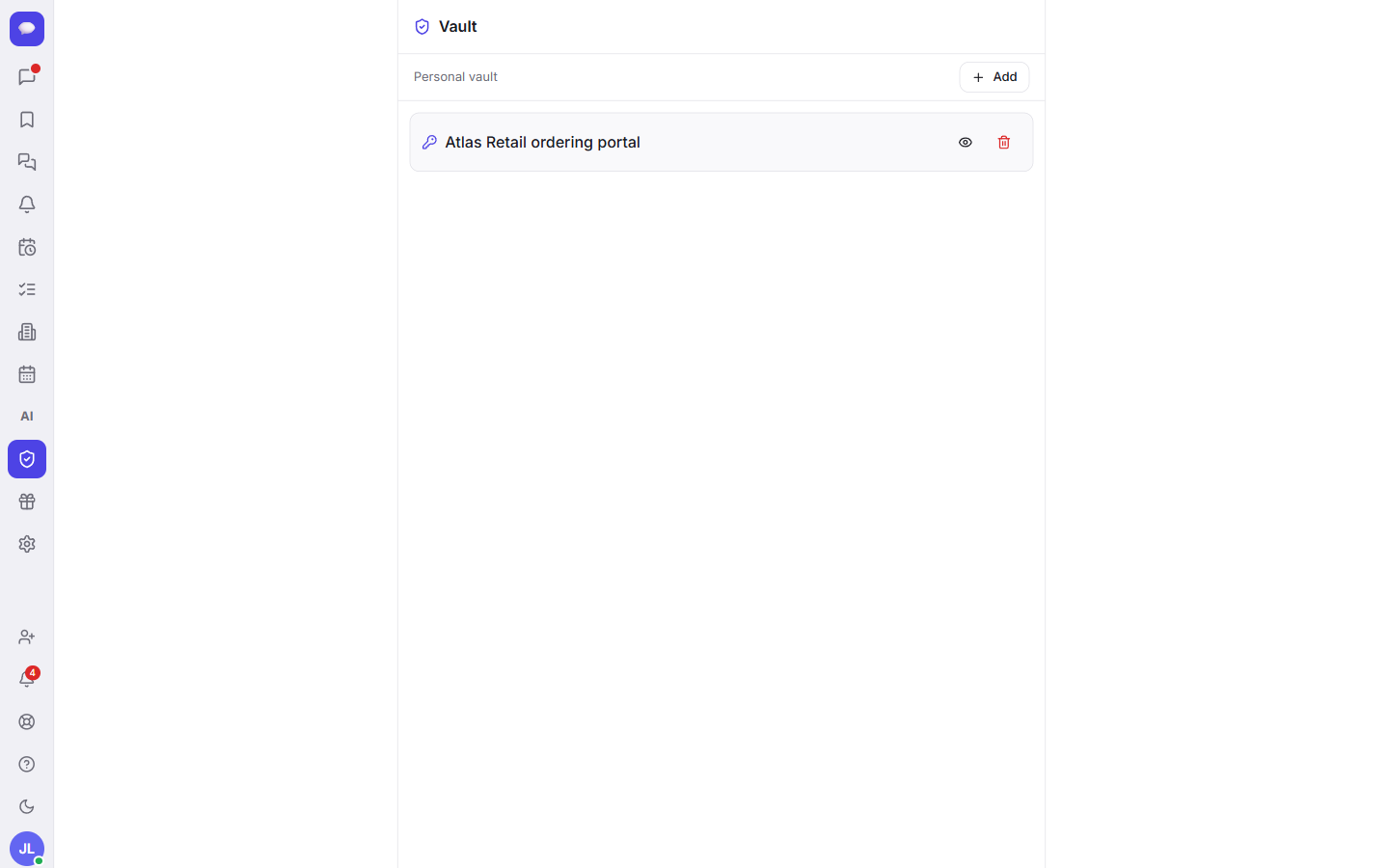
This keeps casual shoulder-surfing and accidental screenshots from leaking anything. The value only appears when you deliberately ask for it.
Sharing secrets with a channel
A personal vault is great for your own logins, but teams need shared ones too. For that, Fada has a Channel vault: secrets that belong to a specific channel and the team in it. Put the client's hosting credentials in the channel vault for that client's project, and everyone working there can reach them — without anyone ever pasting them into the conversation.
If you're still organising who belongs in which channel, our guide on how to manage your workspace covers roles and channel membership. And if you've been handling credentials by attaching files, you'll find the vault a much safer fit than the approach in our share files and media tutorial — keep documents in files, keep secrets in the vault.
What you get on Business plans
The vault is part of Fada's Business plan and uses role-based access so teams can control who handles sensitive logins:
- Role-based access, so you control who can see and manage shared secrets.
Enterprise adds the full audit log and compliance controls for organisations that need formal activity records.
Business is one flat monthly price for the whole team — not per user — so adding everyone to the vault doesn't change the bill. And as with everything in Fada, your data can be self-hosted if your business needs the vault to live entirely on your own infrastructure.
Bring your team's secrets in from the cold
Shared passwords don't have to live in chat threads, sticky notes, or someone's memory. With the zero-knowledge vault, they sit encrypted on your devices and scrambled on the server — convenient to reach, impossible for anyone else to read. Set your passphrase, add your logins and keys, and use the channel vault to share them with exactly the right people.
Fada is free to start with no credit card, and works fully in your team's languages with proper multilingual. Ready to give your team a safer place for its passwords? Start a free Fada workspace and open your vault today.
Bring your team together on Fada
Create your workspaceKeep reading
How to store and share team passwords safely with a zero-knowledge vault
Stop pasting team passwords into chat. Learn how to store and share logins safely in Fada with a zero-knowledge vault that encrypts secrets on your device.
How to invite your team and manage who can see what
Invite teammates to your Fada workspace, add them to the right channels, set roles to control access, and remove anyone in one place when they leave.