Direct messages and group chats in Fada
Start a private one-to-one conversation or a small group chat — and jump on a quick call without leaving the chat.
Published 14 June 2026 · 4 min read · Fada
Not every conversation belongs in a channel. Sometimes you just need a quick word with one person, or a private thread with two or three people, without everyone in the workspace watching. In Fada, that is what direct messages are for. They are private to the people in them, they never show up in any channel, and you can even hop onto a quick call right from the chat. Here is how to start one.
Start a direct message
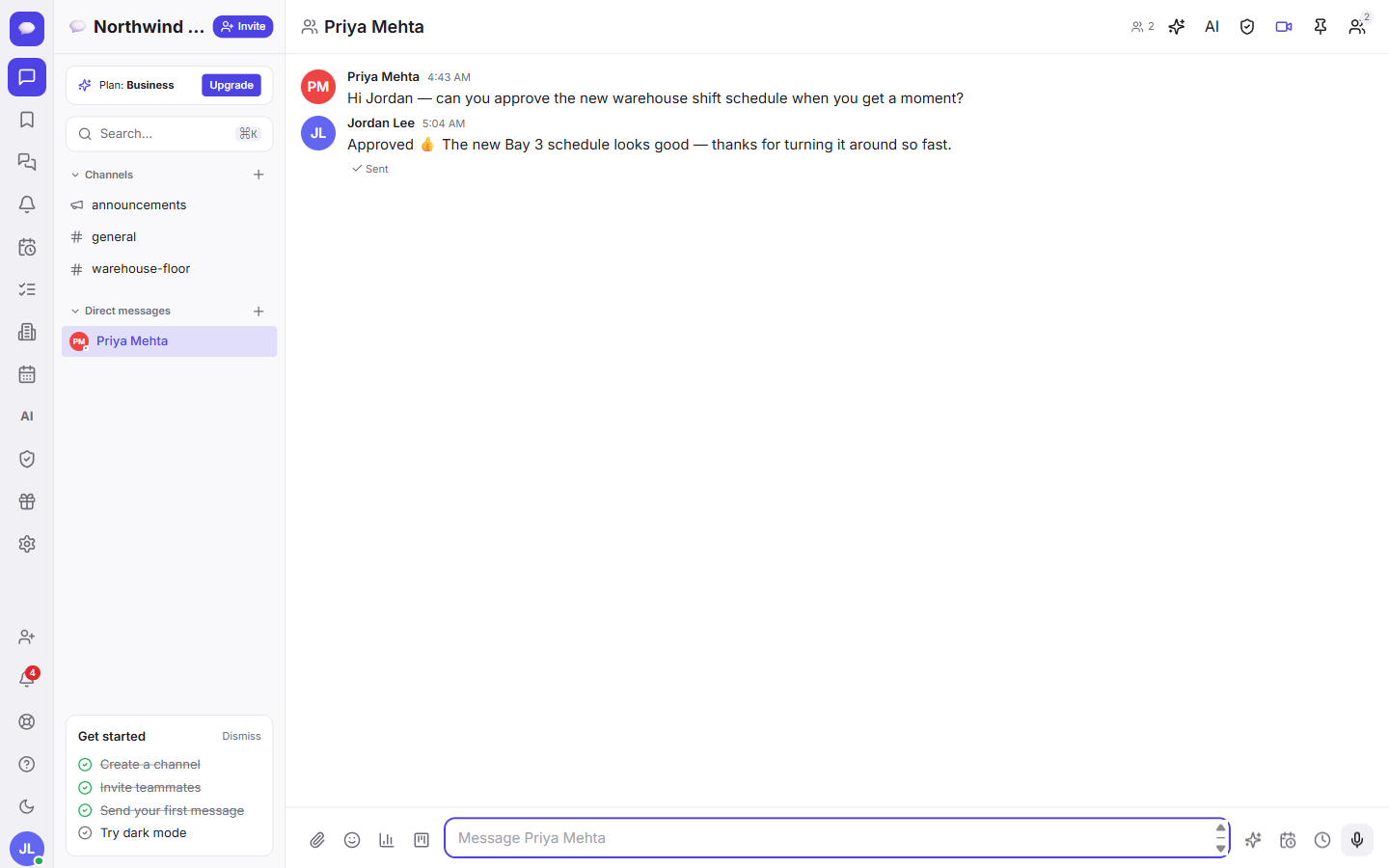
Look at the left sidebar. Next to the Direct messages heading you will see a small + button. That is where every private conversation begins.
- Select the + next to Direct messages (it opens New message).
- Search for the person you want to talk to by name.
- Select them from the results.
- Select Start conversation.
That is it — you now have a private one-to-one chat. Type your message, hit send, and your teammate gets it instantly. If they have notifications turned on, Fada will reach them even when the app is closed, using standard web push, so there is no extra app to install from an app store.
Make it a small group chat
The same flow handles small group chats. Instead of picking one person, pick several.
- Select the + next to Direct messages again.
- Search for and select the first person.
- Keep searching and selecting until everyone you want is added.
- Select Start conversation.
Now you have a private group thread for just those people. It is perfect for a few teammates coordinating on something specific — a client, a small project, a quick decision — without spinning up a whole channel that the rest of the team sees. When a conversation grows past a handful of people or needs to stick around long-term, that is usually the moment to move it into a channel instead. Our guide on channels and how to organize your team walks through that.
Everything stays private
This is the part people most often ask about, so to be clear: direct messages and group chats are private to the people in them. They do not appear in any channel, and no one outside the conversation can read them. A direct message is a closed room — only the people you added are inside it.
Jump on a quick call
You do not have to leave the chat to talk face to face. Look at the top of any direct message and you will see a video-call icon in the header.
- Open the direct message or group chat.
- Select the video-call icon in the header.
- Your call starts right there, with the same people who are in the chat.
It is the fastest way to turn a back-and-forth of typed messages into a two-minute conversation. If you want the full picture of calls, screen sharing, and scheduled meetings, see our walkthrough on meetings and video calls.
The same tools you already know
A direct message is not a stripped-down version of a channel. Everything you can do in a channel works here too:
- Share files — drag in a document, image, or PDF.
- Send voice notes — record a quick message when typing is too slow.
- Add reactions — a thumbs-up beats a one-word reply.
- Reply in threads — keep a side discussion tidy without cluttering the main chat.
So if you have already learned how channels work, you know how direct messages work. If reactions and threads are new to you, our guide on messages, threads, and reactions covers them step by step.
A few things worth knowing
- Fada is free to start, with no credit card needed, so you can try direct messages and group chats with your team today.
- When you are ready to unlock the full workspace, Business is one flat monthly price for the whole team — not a charge per person — so adding teammates never raises your bill.
- The whole app works in multilingual team workflows, with comfortable reading, so mixed-language teams feel at home.
- If your business needs to keep its data on its own servers, Fada can be self-hosted.
Direct messages keep the quiet, private side of your team's work flowing — a fast word with one person, a small huddle with a few, a quick call when typing is not enough. Once you have them set up, your channels stay focused and your one-to-one conversations stay where they belong.
Ready to give it a try? Start a free Fada workspace and send your first direct message in under a minute.
Bring your team together on Fada
Create your workspaceKeep reading
Messages, threads and reactions: the basics of chatting in Fada
Send messages, react with emoji, keep side-conversations in threads, and pin the things that matter — the everyday building blocks of Fada.
Organize your team with channels in Fada
Replace a dozen scattered group chats with channels — public, private and broadcast — one for each project, team or client.