Start a video call or schedule a meeting in Fada
Meet now with one click, or schedule a meeting — every one gets a built-in Fada video link, with no Zoom or Meet needed.
Published 12 June 2026 · 5 min read · Fada
Need to talk to your team face to face? You should not have to juggle a separate Zoom or Google Meet account, copy a link from one app, and paste it into another just to get on a call. In Fada, meetings live right next to your chats. You can jump on a call this second, or put one on the calendar — and either way Fada makes the video link for you. No extra account, no plugin, no setup.
This guide shows you both: starting an instant call, and scheduling one for later.
Where to find meetings
Look at the left rail of your Fada workspace and open the Meetings tab. This is your home for everything call-related: a list of what is coming up, and the two buttons you will use most.
- Meet now — starts an instant video call right away. Use this when you want to talk immediately and pull people in on the spot.
- New meeting — schedules a call for a future time, invites people, and sends reminders. Use this when you are planning ahead.
That is the whole decision. Talk now, or plan for later.
Meet now: start an instant call
When something cannot wait, click Meet now. Fada opens a video call straight away and gives you a shareable link so you can drop it into any chat and invite people in seconds. There is nothing to install and no meeting to set up first — you are simply in the call.
This is great for a quick "can you hop on for two minutes?" moment instead of typing back and forth.
Schedule a meeting for later
For anything planned — a weekly sync, a client review, a kickoff — click New meeting. You will fill in a short form:
- Title — give the meeting a clear name so everyone knows what it is about.
- Time — pick a quick preset like In 30 min, In 1 hour, or Tomorrow 9 AM, or set a custom date and time of your own.
- Invite people — add the teammates (or clients) who should attend.
- Post to a channel (optional) — share the meeting in a channel so the whole team sees it, not just the people invited.
- Reminders — choose when Fada should nudge everyone before it starts.
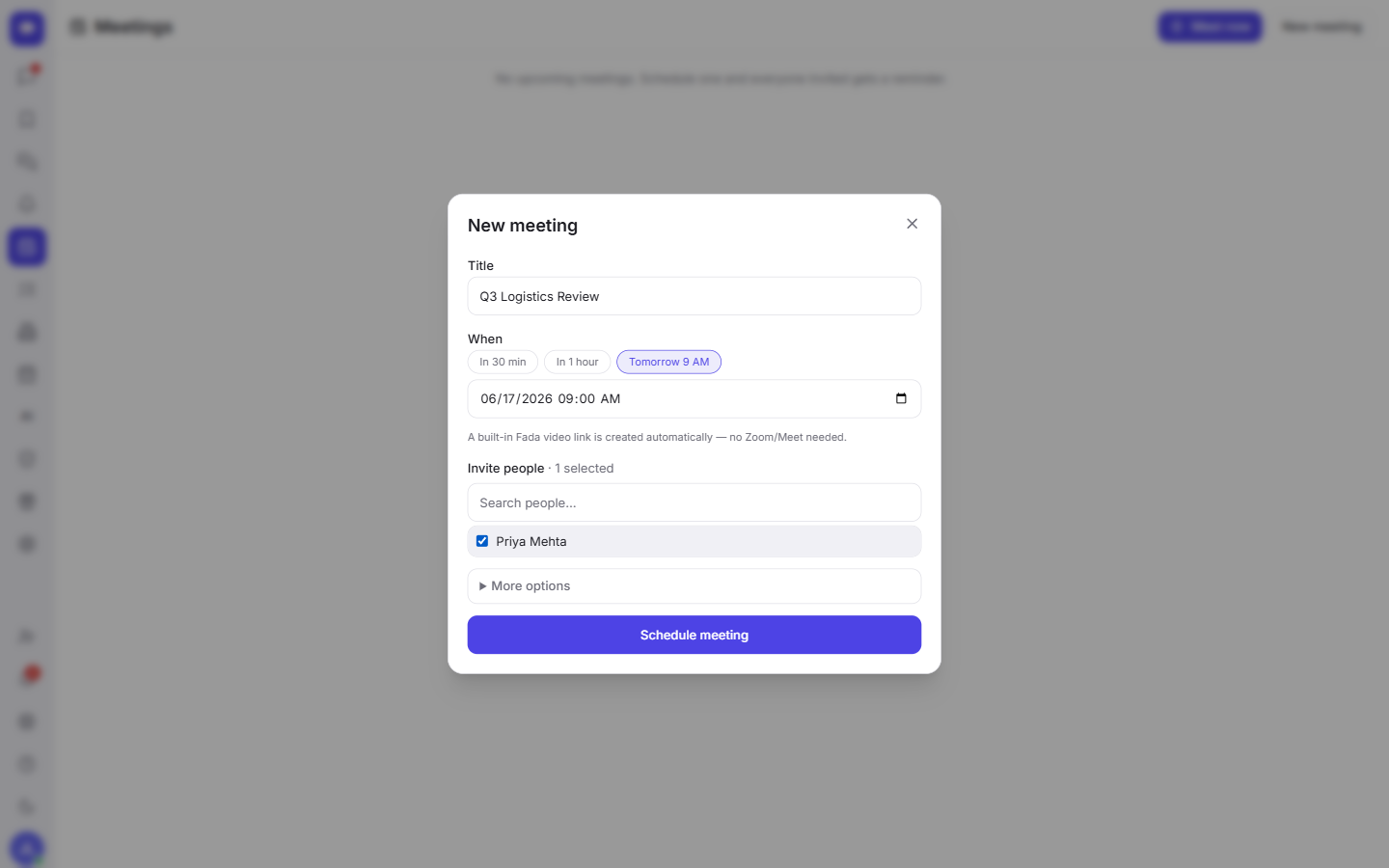
The important part: Fada creates a built-in video link for the meeting automatically. It lives at fadadz.com/call/... and works in the browser — there is no Zoom or Google Meet to connect, no account to link, nothing to configure. Everyone you invite gets a reminder when the time approaches, so meetings do not slip through the cracks.
If you also keep your week organized in Fada, scheduled meetings sit naturally alongside your other plans — see working with the calendar and events for how the two fit together.
Joining a meeting
When it is time, you do not need to hunt for a link in your inbox. Open the Meetings tab and you will see your upcoming meetings listed, each with a Join button and the shareable Fada call link.
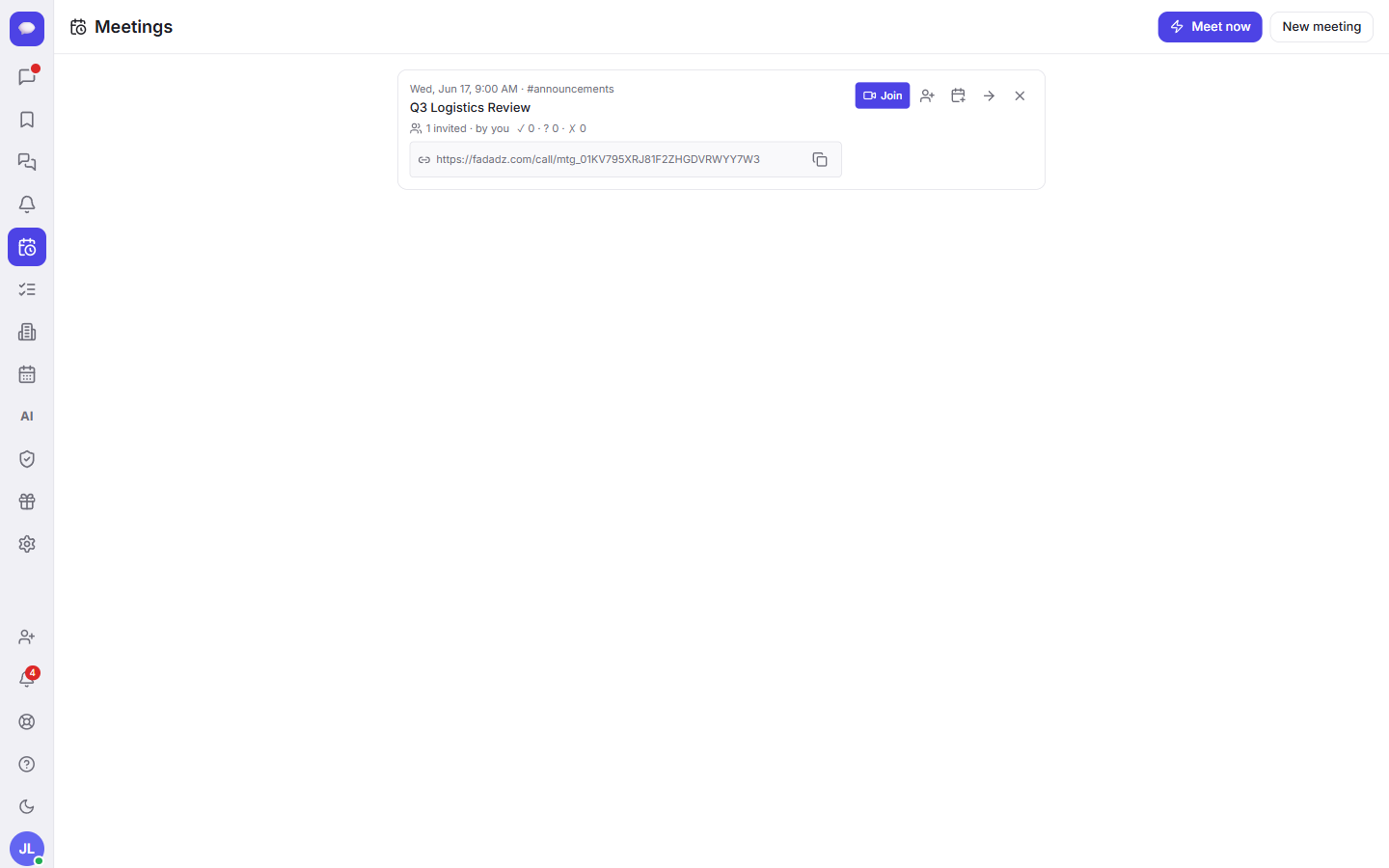
Two easy ways in:
- Click Join next to the meeting in the list, or
- Open the call link directly — handy for inviting someone outside your usual channels, since the link is theirs to click too.
Because the reminders go out automatically, people show up on time without you chasing them.
Quick calls from a direct message
Already chatting one-on-one with a teammate? You do not have to switch tabs to call them. Open the direct message and click the video icon in its header — that starts a quick call with that person right there.
It is the fastest path from "let me explain in chat" to "let me just show you." If you live in your one-on-one and group conversations, direct messages and group chats covers how those threads work, and setting reminders helps you make sure follow-ups from a call do not get forgotten.
A few things worth knowing
- It is free to start. You can create a workspace and begin meeting with no credit card.
- Business is one flat price. When your team grows into the Business plan, it is a single flat monthly price for the whole team — not a charge per person — so adding teammates never makes meetings more expensive.
- Built for your languages. Fada works fully in your team's languages, including proper multilingual, so mixed-language teams feel at home.
- Notifications without an app store. Reminders reach you through standard web push, so you do not need to install a separate app to get notified a meeting is starting.
That is everything: talk now with Meet now, plan ahead with New meeting, and let Fada handle the video link and the reminders. No second tool, no copy-pasting links between apps — just your team, in one place.
Ready to try it with your own team? Start a free Fada workspace and host your first call in a couple of minutes.
Bring your team together on Fada
Create your workspaceKeep reading
Run a poll and pin the decision in Fada
Ask the team a question, collect votes, and pin the outcome so a decision never gets lost in the scroll.
Share files, images and documents in Fada
Attach documents, images and recordings to any message — with previews — so files live with the conversation instead of getting lost.