Keep your team on schedule with the Fada calendar
Create events with attendees, locations and reminders — everyone invited gets a nudge and can RSVP.
Published 12 June 2026 · 5 min read · Fada
Most missed deadlines and no-shows come down to the same thing: the date lived in someone's head, or in a chat message that scrolled away. The Fada calendar fixes that. You put the event in one place, invite the people who need to be there, and Fada nudges everyone so nobody has the "wait, that was today?" moment.
This guide walks you through creating an event, inviting your team, and reading the calendar at a glance. It takes about two minutes.
When to use an event (and when not to)
Use events for anything on the schedule that is not a video call — site visits, delivery windows, payment deadlines, a client drop-off, the day a contract is due. Anything with a date and a place belongs here.
For actual calls, use Meetings instead, which gives you a join link and video built in. If you are not sure which one you need, our guide to meetings and video calls covers that side. The short version: a place to be is an event, a call to join is a meeting.
Create an event
1. Open the Calendar
In the left rail, open the Calendar tab. You will see the month laid out, with anything already scheduled marked on its day.
2. Select New event
Click New event to open the form. Here is what you fill in:
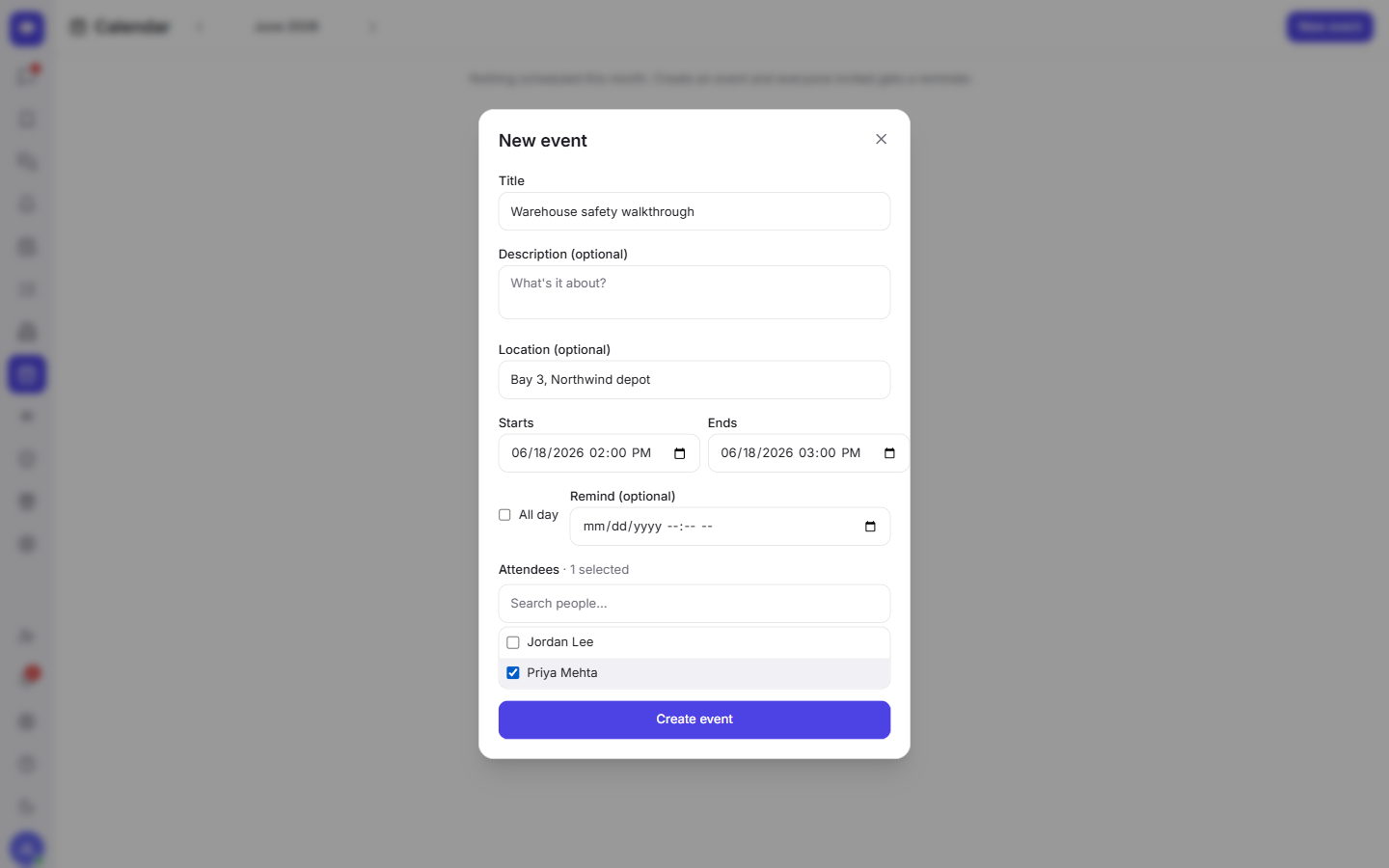
- Title — what the event is, in a few words. This is what people see on the calendar, so keep it clear: "Site visit — Bab Ezzouar" beats "meeting".
- Description — the details that do not fit in the title: what to bring, who to ask for, the order number, anything the attendees need to know.
- Location — where it happens. An address, a building, a room — whatever helps people show up in the right spot.
- Start and End — the time window. Set both so people know how long to block out.
- All-day — turn this on for things that take the whole day or have no fixed time, like a deadline or a delivery date.
- Remind — choose when Fada should send the heads-up before the event. This is optional, but it is the part that keeps people from forgetting.
- Attendees — the people you want there. Add anyone in your workspace.
Fill in what you need and save. The event lands on the calendar straight away.
Everyone invited gets a nudge — and can RSVP
This is where the calendar earns its keep. The moment you save, every attendee you added gets a reminder, so the event is not just sitting on a screen they might never open. Those nudges go out through standard web push, which means they reach people on desktop and on their phone without installing anything from an app store — if you want the detail on how that works, see notifications and web push.
Each invited person can respond right from the event with one of three buttons:
- Accept — they will be there.
- Maybe — they are not sure yet.
- Decline — they cannot make it.
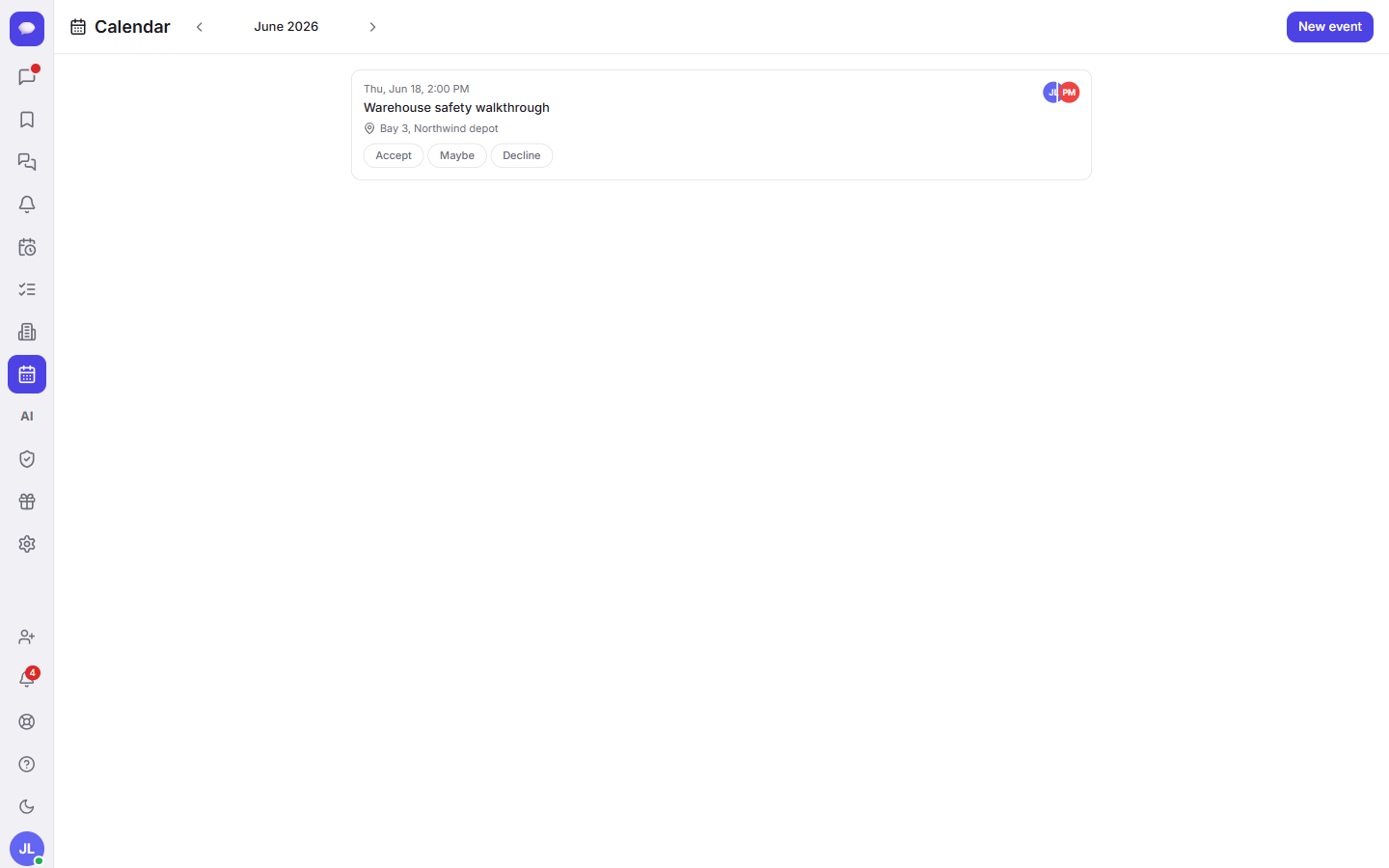
You see each person's avatar on the event along with their answer, so at a glance you know who is coming, who is on the fence, and who to follow up with. No more chasing replies one by one in chat.
If you want a second, time-based nudge that is not tied to an event — "call the supplier Thursday morning", "renew the licence" — set a personal reminder instead. Events are for shared dates; reminders are for your own to-dos.
Read the calendar at a glance
The calendar lists everything that is scheduled so your week is never a mystery:
- Open the Calendar tab to see the current month.
- Each event shows on its day, with the attendee avatars attached.
- Use the controls to move between months — step forward to plan ahead, or back to check what already happened.
Because it is shared, your whole team is looking at the same schedule. When you add a site visit for Tuesday, everyone invited sees it on their calendar too, with the same reminder and the same RSVP buttons.
Built for the way your team works
The calendar speaks your team's language. Fada is fully at home in your team's languages, with comfortable multilingual reading — so titles, locations and reminders all read naturally, whichever language your people use.
And it is yours to grow into. Fada is free to start with no credit card, and when you are ready for more, Business is one flat monthly price for the whole team — not a charge per person — so adding the whole crew to a busy calendar never costs you more. If you would rather keep everything on your own servers, Fada can be self-hosted too.
Put your next deadline on the calendar
Stop tracking dates in your head and in chat threads that disappear. Add the event once, invite the right people, and let Fada do the reminding and the RSVP chasing for you. Your team shows up, on time, in the right place.
Ready to get organised? Start a free Fada workspace and add your first event today.
Bring your team together on Fada
Create your workspaceKeep reading
Run a poll and pin the decision in Fada
Ask the team a question, collect votes, and pin the outcome so a decision never gets lost in the scroll.
Share files, images and documents in Fada
Attach documents, images and recordings to any message — with previews — so files live with the conversation instead of getting lost.