Run a poll and pin the decision in Fada
Ask the team a question, collect votes, and pin the outcome so a decision never gets lost in the scroll.
Published 14 June 2026 · 5 min read · Fada
Every team hits the same wall: a simple question — which day, which logo, which supplier — turns into forty messages, three side conversations, and no clear answer. Two days later someone asks "so what did we decide?" and nobody is sure. A poll fixes this. You ask once, everyone taps an option, the votes count themselves, and you pin the result so the decision lives at the top of the channel where no one can miss it.
This guide walks you through creating a poll in Fada, letting the team vote, and locking in the outcome — start to finish, in about a minute.
Why use a poll instead of asking in chat
When you ask "Friday or Monday?" in a normal message, you get answers scattered across the thread, some people reply with a thumbs-up, some write a paragraph, and counting becomes a chore. A poll turns that into one tidy box:
- Everyone sees the same options, so there's no confusion about what they're choosing between.
- Votes are tallied automatically — no scrolling back to count heads.
- The result is visible at a glance, with a bar and a number for each choice.
It works the same way for a quick gut-check in a busy channel or a formal sign-off on a real decision. If you're still setting up your channels, our guide on how channels keep your team organized is a good place to start, so your poll lands in front of the right people.
Step 1 — Open the poll composer
Go to the channel where the decision belongs and look at the message box at the bottom. Next to where you type, you'll find the poll icon — it looks like a small bar chart. Click it to open the poll builder.
Add your question and options
- Type your question at the top — keep it short and specific, like "Which day for the team lunch?"
- Add at least two options. These are the answers people will choose from.
- Need more than two? Click Add option to add as many rows as you need.
There are also two switches you can flip depending on what you want:
- Multiple choice — let people pick more than one option. Handy when you're gauging interest ("Which of these features would you use?") rather than forcing a single winner.
- Anonymous — hide who voted for what. Use this when you want honest answers without anyone feeling watched, like a vote on a sensitive topic.
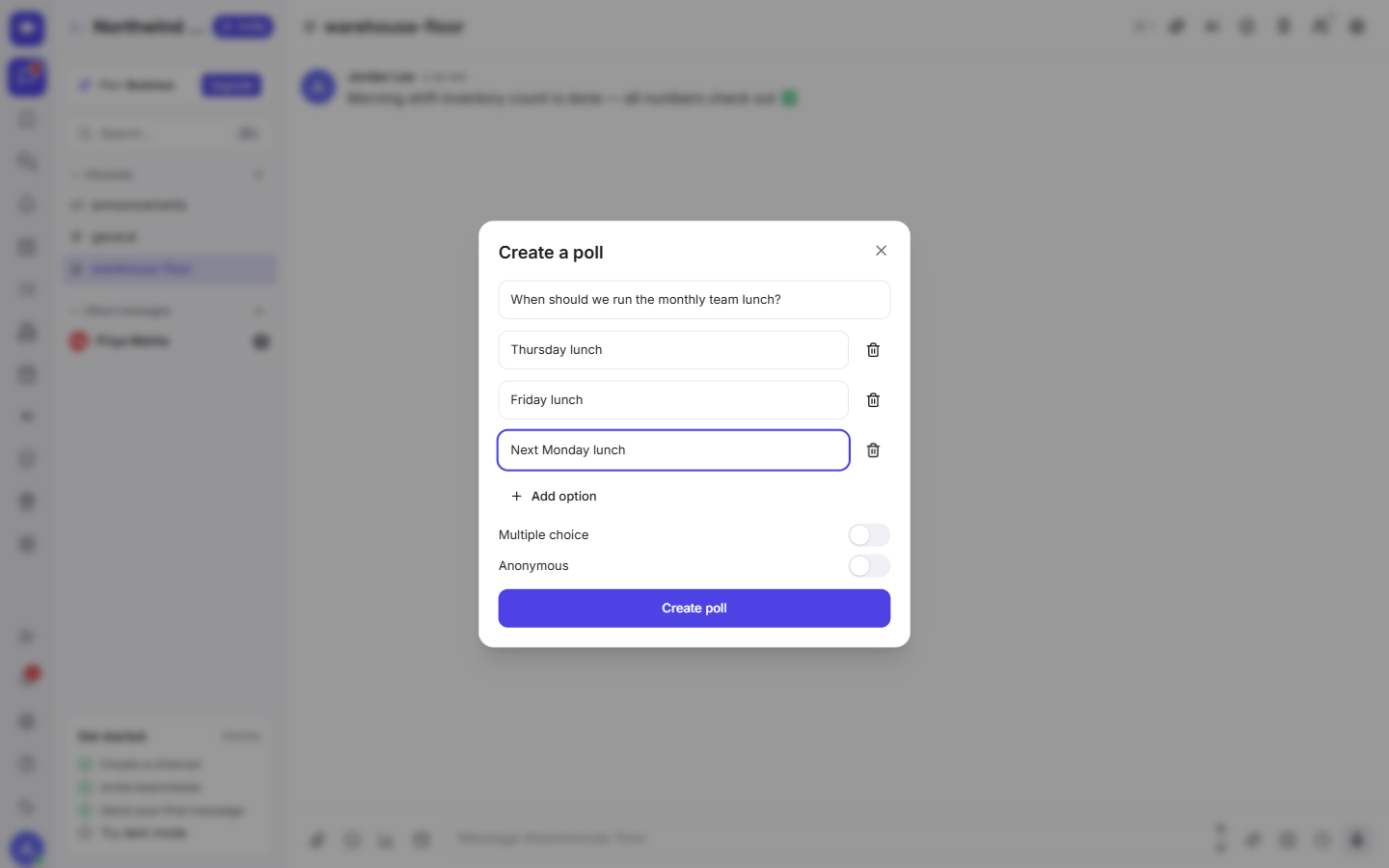
Once your question and options look right, send the poll the same way you'd send any message. It appears inline in the channel for everyone to see.
Step 2 — Let the team vote
The poll shows up right in the channel conversation, so nobody has to leave Fada or open a separate tool. To vote, a teammate just selects the option they want.
As votes come in, the poll updates live: each option gets a percentage bar and a running count, so you can watch the result take shape in real time. No refresh, no manual tally.
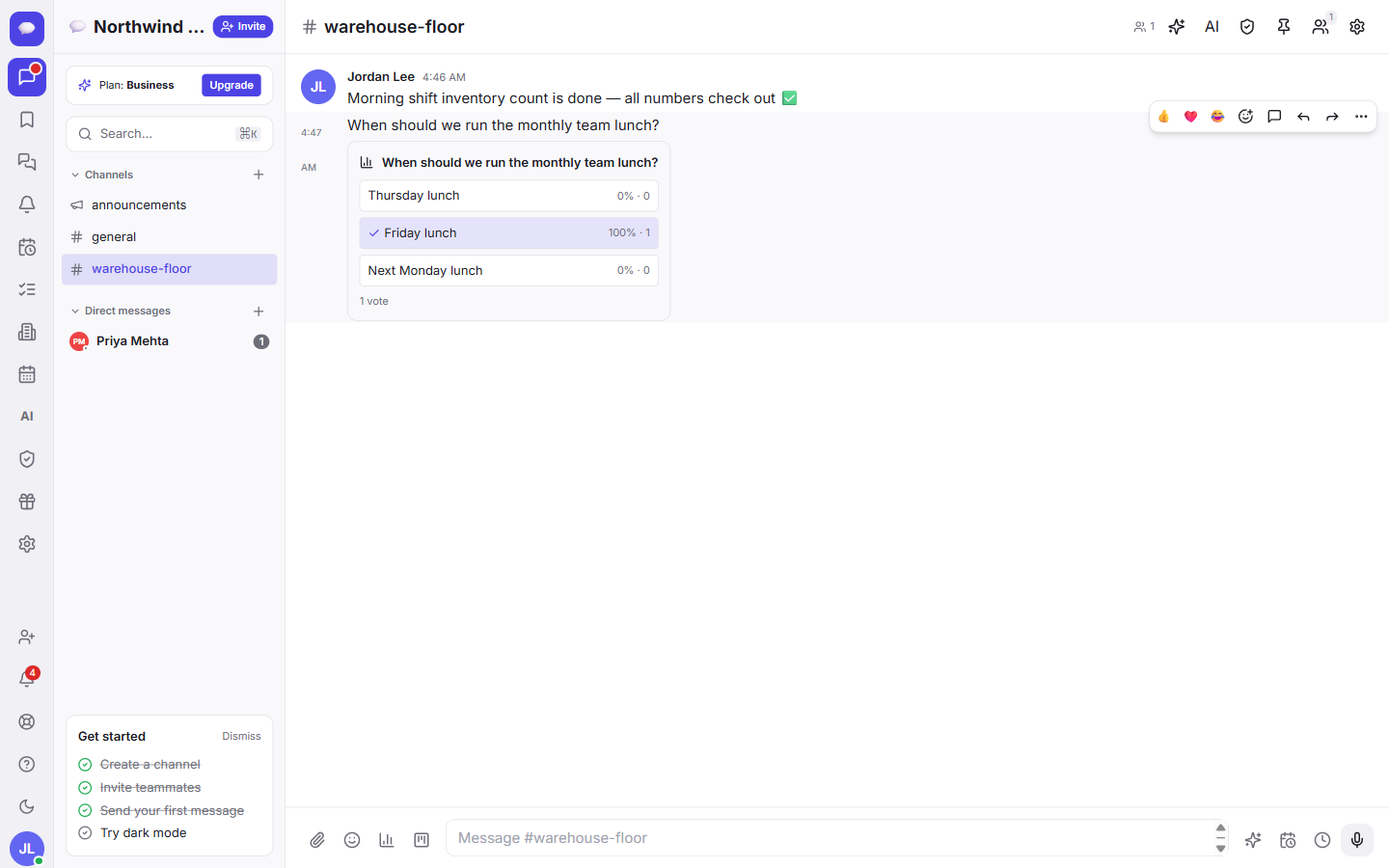
A few practical tips:
- Give people a deadline in words — "voting closes Friday at noon" — so it doesn't drift forever.
- If turnout is low, a friendly nudge in the channel usually does the trick. You can react to or reply to the poll like any other message; see messages, threads, and reactions for the quick ways to follow up without cluttering the channel.
- If you chose multiple choice, remember the percentages can add up past 100% — that's expected, since each person may pick several options.
Step 3 — Pin the decision so it never gets lost
This is the part most tools forget. A poll is only useful if the result is easy to find later. When the team has clearly landed on an answer, pin it.
- Hover over the poll message to bring up the message menu.
- Choose Pin to channel.
The poll now stays pinned at the top of the channel, so anyone — including someone who joins the team next month — can open the channel and immediately see what was decided and how the vote went. No more "wait, what did we agree on?"
When the decision is genuinely settled and you no longer need it front and center, you can unpin it the same way to keep the channel tidy.
A clean way to make decisions, in any language
Fada is built for teams that work across your team's languages — the experience stays consistent, with comfortable multilingual reading, so a poll reads naturally no matter which language your team uses to ask the question. Everyone gets the result the moment it changes, on whatever device they're on. Background alerts use standard web push, so there's no separate app to install from a store, and if your business needs to keep everything in-house, Fada can be self-hosted.
It's free to start with no credit card. When you're ready to grow, Business is one flat monthly price for the whole team — not per user — so adding more voters never costs more.
Polls turn a messy back-and-forth into one tidy box, and pinning turns a fleeting vote into a decision your whole team can find weeks later. That's the difference between "I think we agreed on Friday?" and a clear answer sitting at the top of the channel. Set up your first one this week and watch how much faster small decisions get made. Start a free Fada workspace and run your first poll in the next five minutes.
Bring your team together on Fada
Create your workspaceKeep reading
Share files, images and documents in Fada
Attach documents, images and recordings to any message — with previews — so files live with the conversation instead of getting lost.
Set reminders on messages so nothing slips
Turn any message into a reminder — in 20 minutes, tomorrow, or next week — and let Fada nudge you when it is time.