Organize your team with channels in Fada
Replace a dozen scattered group chats with channels — public, private and broadcast — one for each project, team or client.
Published 15 June 2026 · 5 min read · Fada
If your team's chat has turned into a tangle of group chats — one for the website project, another for the new client, a third for "general", and three more nobody remembers the purpose of — channels in Fada fix that. A channel is a dedicated, named space for one topic. One channel per project, team or client keeps every conversation on-topic, easy to find, and easy to catch up on after a day off.
This guide walks you through creating channels, choosing the right type, and using the tools built into every channel header.
What a channel is, and when to use one
Think of a channel as a room with a label on the door. People join the room, talk about that one thing, and everything stays in its place. The rule of thumb is simple: one channel per project, team or client. When a new project kicks off, make a channel. When it wraps up, the whole conversation is already archived in one tidy place.
This is different from a quick one-to-one or small huddle. For private side-conversations between a few people, direct messages and small groups are the better fit. Channels are for the ongoing, shared work that the whole team — or a whole client account — needs to see.
Create your first channel
In the left sidebar you'll see a Channels section. Next to it is a + button.
- Click the + next to Channels and choose New channel.
- Give it a clear Name — something a teammate would recognize at a glance, like the project or client name.
- Add a Description (optional) so people know what belongs here and what doesn't.
- Pick the channel type and privacy (more on those next).
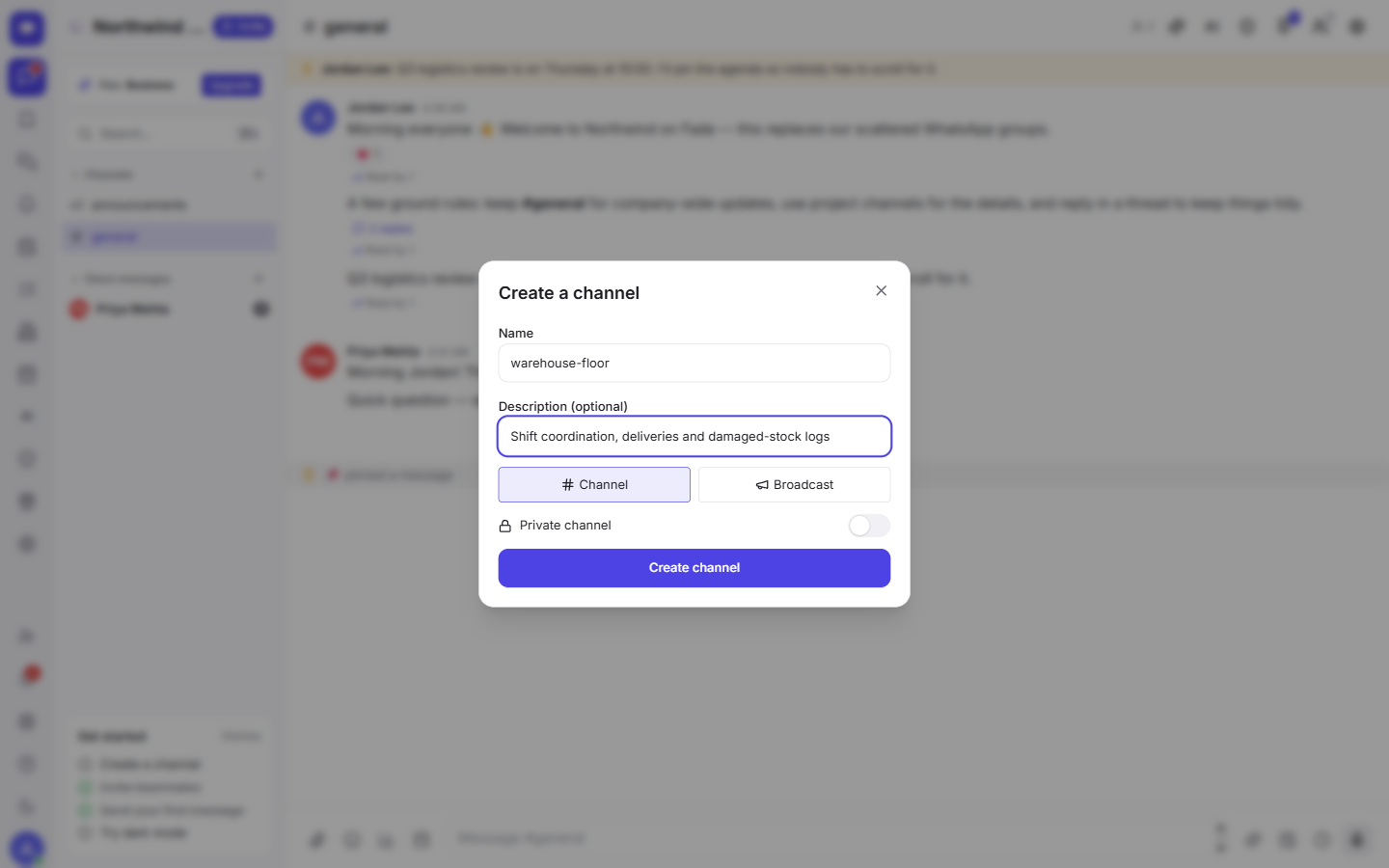
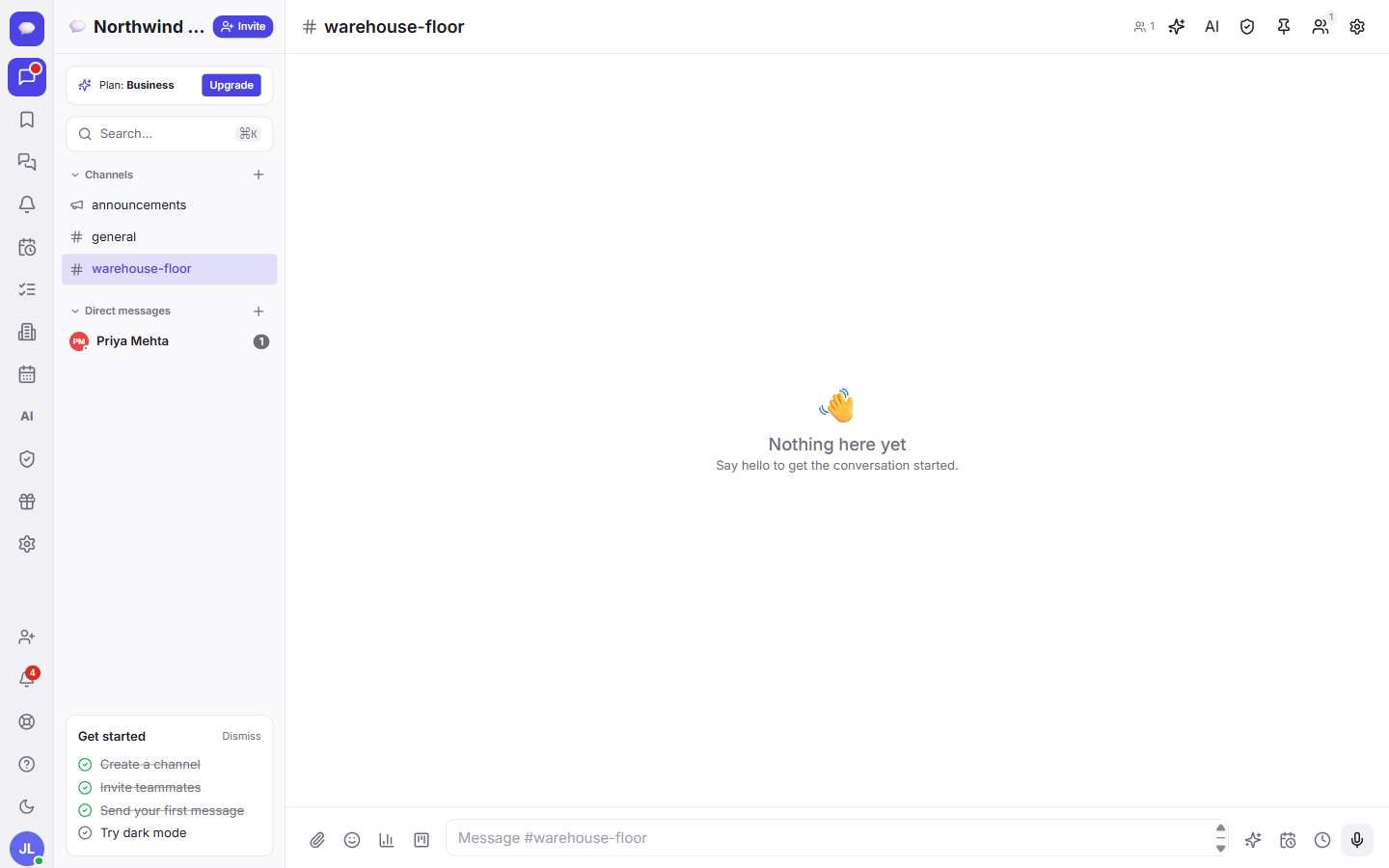
Once you confirm, the new channel drops straight into the Channels list in your sidebar, ready for the team to open and start posting.
Choose the right type: Channel or Broadcast
The create dialog has a type toggle with two options, and the difference matters.
- Channel — a normal back-and-forth space where everyone can post. Use this for projects, teams and clients where people need to discuss, ask and answer.
- Broadcast — a read-only space for everyone except admins and designated publishers. Use it for announcements, company news or policy updates, where you want everyone to read but not reply over each other.
Pick Broadcast when the goal is to send one clear message to the whole team; pick Channel when you want a conversation.
Public or private?
Below the type toggle is a Private channel switch.
- Public (switch off) — anyone in your workspace can find the channel and join it themselves. Good for open projects and general topics.
- Private (switch on) — the channel is only visible to the people you add. Nobody else can see it or stumble into it. Good for sensitive client work, leadership discussions or HR.
If you're unsure, start public for team-wide topics and reserve private channels for things that genuinely need to be limited.
The tools in every channel header
Open a channel and look at the header — it holds the tools that make a channel more than just a chat box:
- Summarize — catch up on a busy channel in seconds instead of scrolling through everything you missed.
- AI panel — ask questions and get help without leaving the conversation.
- Channel vault — a place to keep the files and resources that belong to this channel.
- Pinned messages — pin the decisions, links and key facts so they're always one click away.
- Members — see who's in the channel and add or remove people.
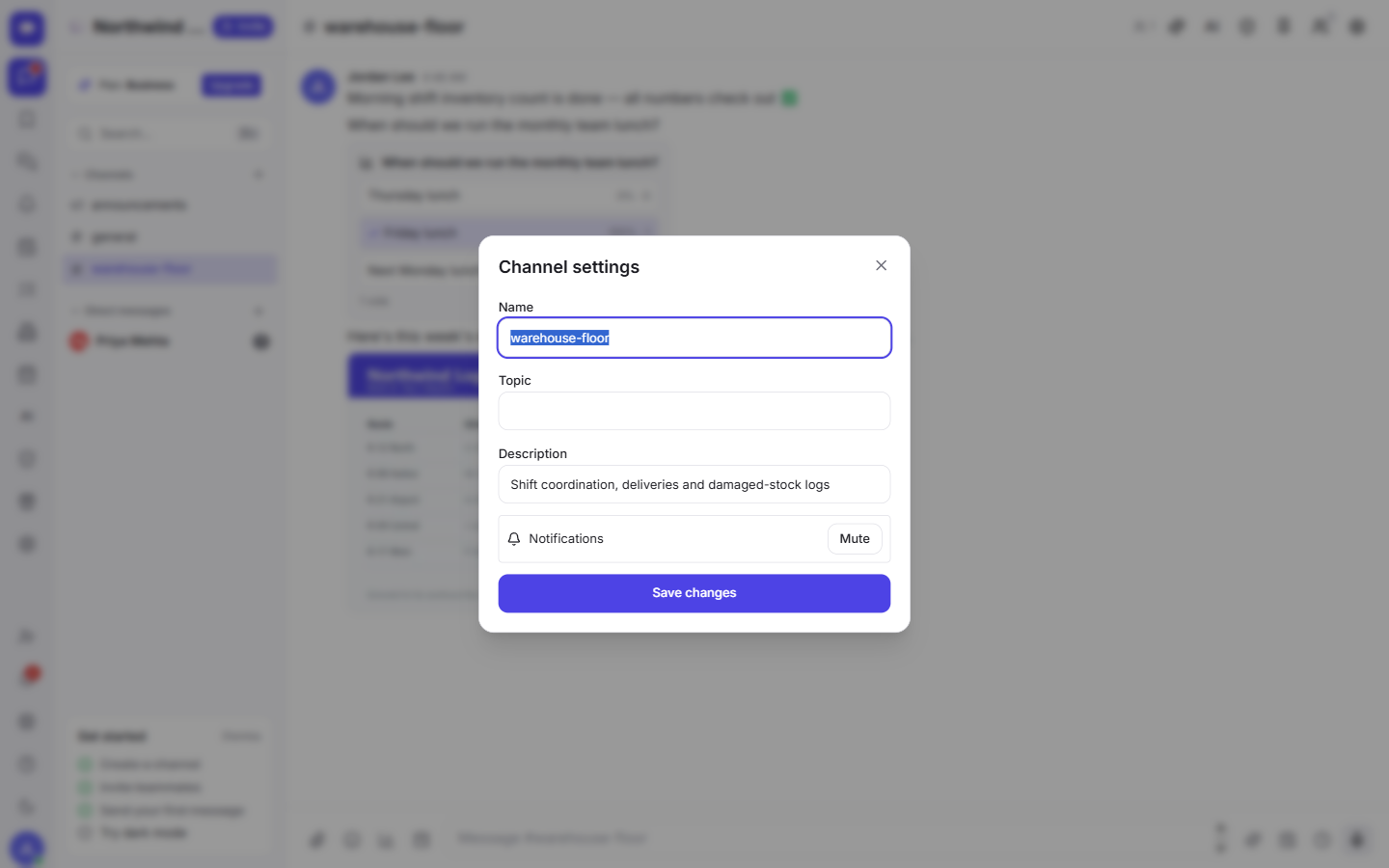
- Settings — rename the channel, edit its description, or change who can post.
Inside any channel you also get the full conversation toolkit — see messages, threads and reactions for how to keep replies organized and reduce noise.
A few habits that keep channels tidy
- Name channels consistently. A shared pattern (for example, the client or project name) makes the sidebar instantly scannable.
- Use the description field. One line about what belongs here saves a lot of "where should I post this?" questions.
- Pin the essentials. New members should be able to read the pinned messages and the description and be up to speed.
- Close the loop. When a project ends, the channel becomes your searchable record of how it went.
If you're brand new to the app, the getting started guide covers the basics before you build out your channel structure.
Start organizing today
Channels turn chat chaos into a clear, searchable map of your team's work — and they're free to start, with no credit card needed. Fada works in your team's languages with comfortable reading, sends background notifications through standard web push (no app-store download required), and can be self-hosted if you want your data on your own server. When you grow, Business is one flat monthly price for the whole team — not per person.
Ready to clear out the scattered group chats? Start a free Fada workspace and create your first channel in under a minute.
Bring your team together on Fada
Create your workspaceKeep reading
Messages, threads and reactions: the basics of chatting in Fada
Send messages, react with emoji, keep side-conversations in threads, and pin the things that matter — the everyday building blocks of Fada.
Direct messages and group chats in Fada
Start a private one-to-one conversation or a small group chat — and jump on a quick call without leaving the chat.