Messages, threads and reactions: the basics of chatting in Fada
Send messages, react with emoji, keep side-conversations in threads, and pin the things that matter — the everyday building blocks of Fada.
Published 15 June 2026 · 5 min read · Fada
Most of the day-to-day in Fada happens in one place: the channel. It's where your team talks, shares files, asks questions and makes decisions. The good news is that the everyday tools are simple — once you know how to send a message, react to one, branch off into a thread and pin the important stuff, you already know 90% of what you'll do in a week. This guide walks through each of those, step by step, so a new teammate can be productive on day one.
If you're setting up a brand-new team, you can start a free Fada workspace in a couple of minutes — no credit card needed — and follow along.
Sending your first message
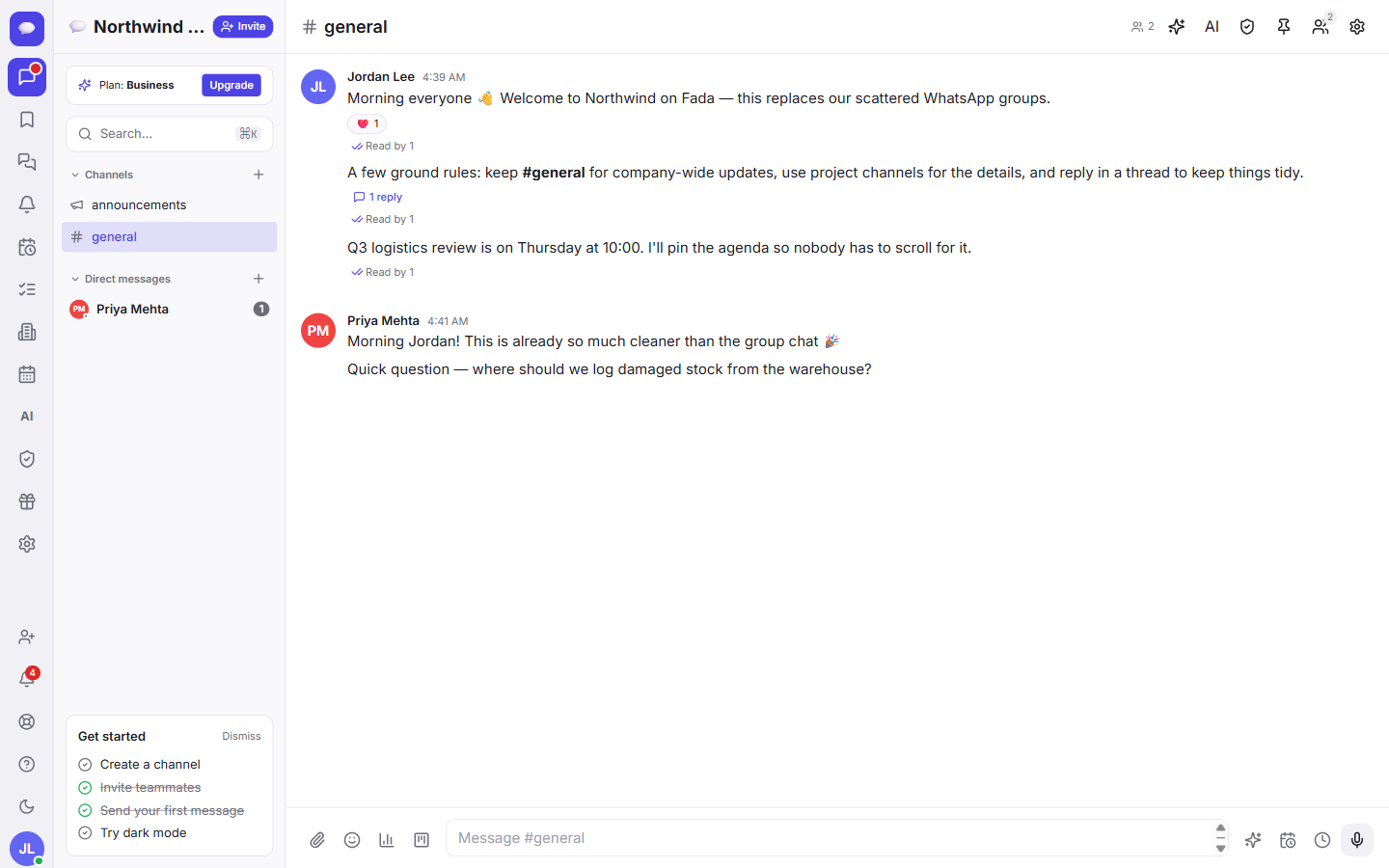
The composer is the text box at the bottom of every channel. Type your message there and press Enter to send it. That's it.
A few things worth knowing right away:
- You can format text as you type. Wrap a word in double asterisks for bold, or single asterisks for italic.
- Fada treats your team's languages as first-class, including comfortable multilingual reading — so you can mix languages in the same channel without anything breaking.
- Once teammates open the channel, you'll see a small Read by count under your message, telling you how many people have seen it. No more wondering whether your note landed.
Reacting, replying and the quick toolbar
You don't always need a full reply. Sometimes a thumbs-up is enough to say "got it" without adding noise to the channel.
Hover over any message (or long-press it on a phone) and a small toolbar appears. From there you can:
- Tap a quick reaction emoji, or open Add reaction to pick any emoji you like.
- Choose Reply in thread to start a side-conversation (more on that below).
- Use Quote reply to respond while showing the original message inline.
- Forward the message to another channel or person.
- Open More actions for everything else.
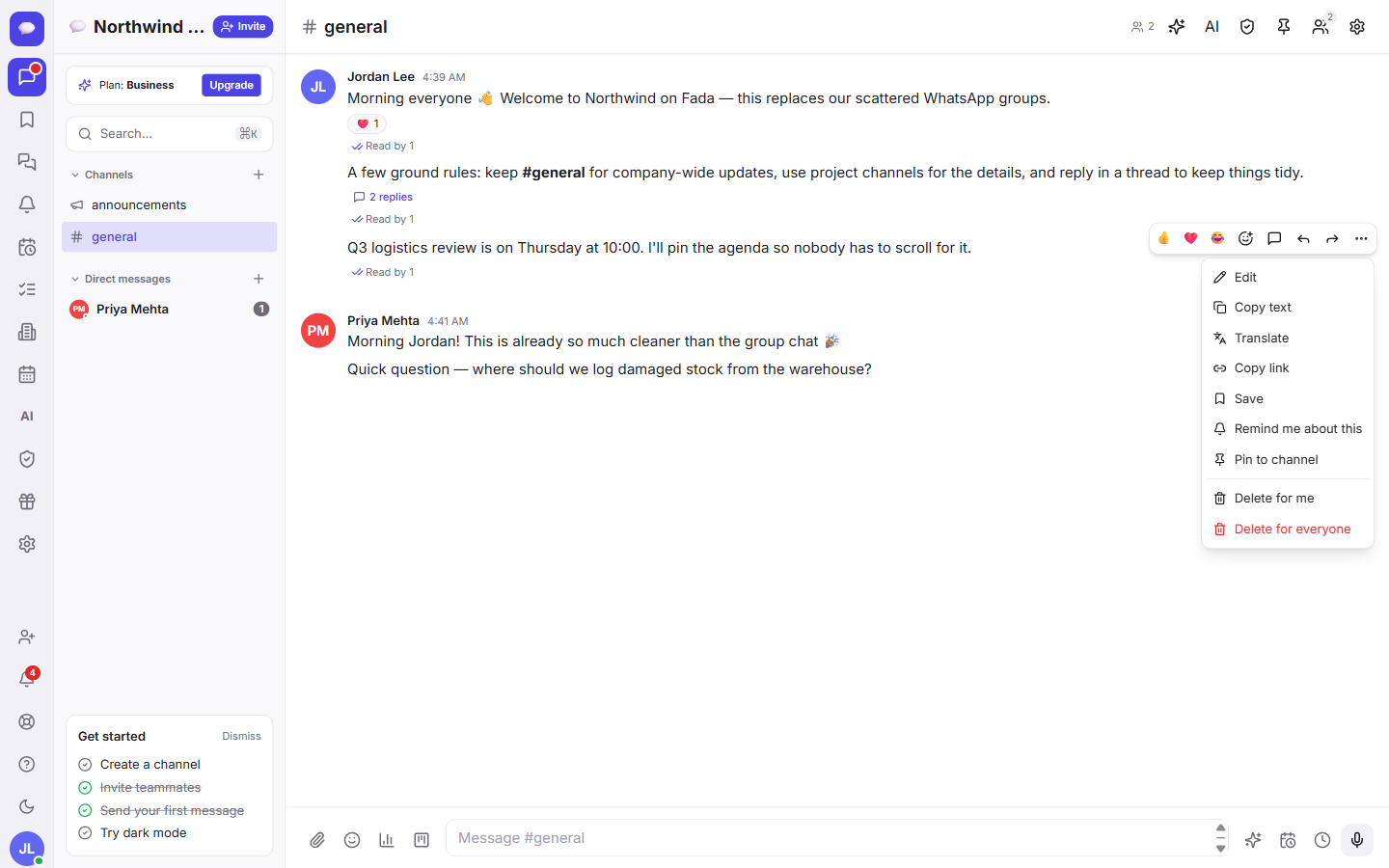
The More actions menu is where the heavy lifting lives. It includes Edit, Copy text, Translate, Copy link, Save, Remind me about this, Pin to channel and Delete. A couple of those are worth calling out:
- Translate turns a teammate's message into your language on the spot — handy on a mixed multilingual team.
- Save tucks a message away so you can find it later. We cover that in saved items and catch-up.
- Remind me about this nudges you about a message at a time you choose, so nothing slips through.
Keeping side-conversations in threads
Here's the problem threads solve: someone asks a follow-up question on an older message, three people answer, and suddenly the whole channel has scrolled up and lost the original context. Threads fix that.
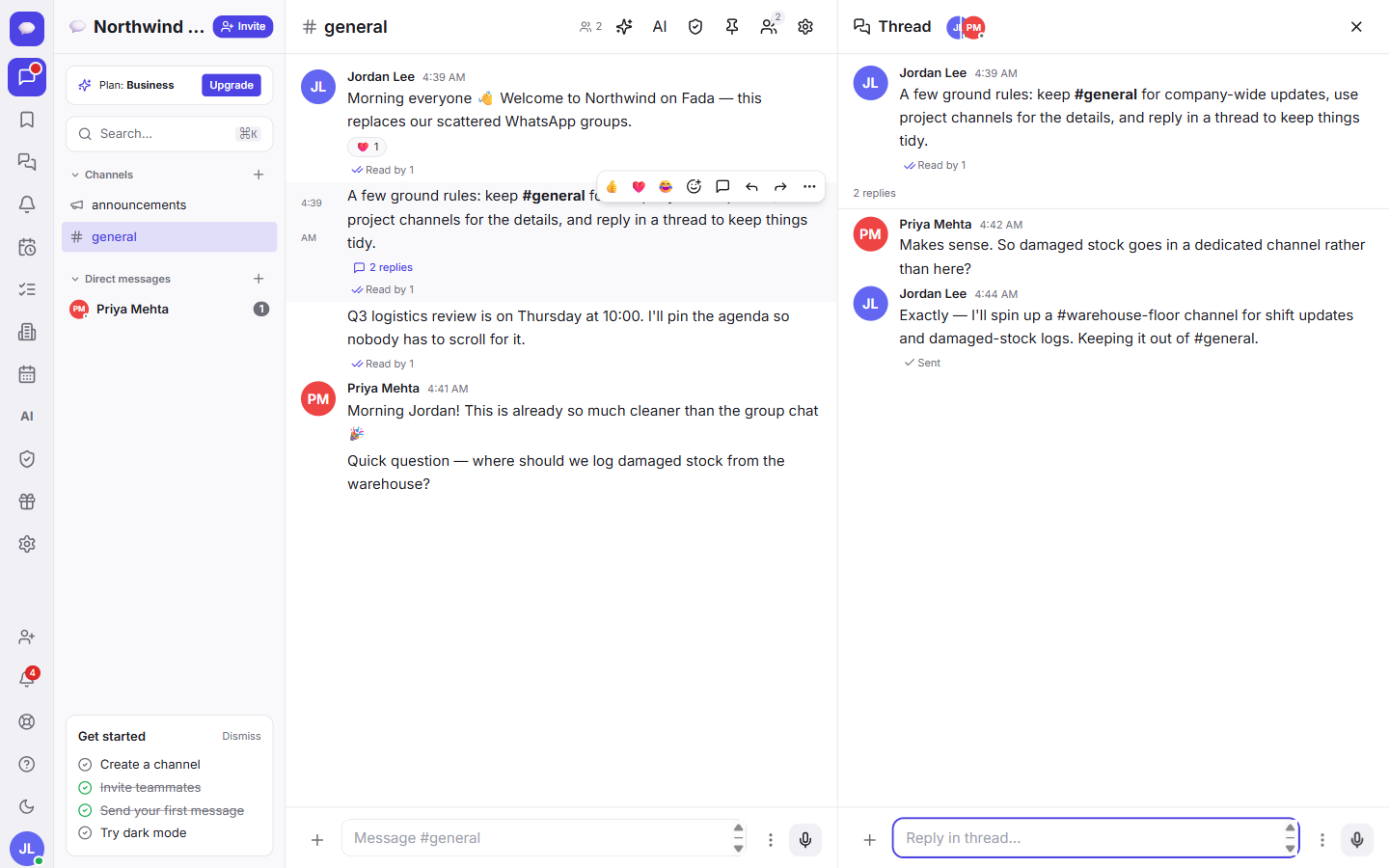
When you choose Reply in thread, your reply stays attached to the original message instead of pushing the channel up the screen. The original message picks up a small reply count, so anyone can click in and read the full back-and-forth whenever they want — without it cluttering the main view.
When to use a thread
- A question that only a few people need to discuss.
- A detail or correction on an announcement, where you don't want to bury the announcement itself.
- Any conversation that would otherwise derail the channel's main topic.
The rule of thumb: if it's a tangent, thread it. The main channel stays readable, and the people who care about the tangent still get the full story.
Pinning the things that matter
Every channel collects a few pieces of info everyone keeps asking for — the meeting link, the address, the current price list, the agreed deadline. Instead of re-posting them, pin them once.
- Hover the message and open More actions.
- Choose Pin to channel.
The pinned message then appears in a banner at the top of the channel and in the channel's Pinned list. Now the key info is one click away for everyone, including the teammate who joins next month. To unpin later, open the same menu and remove it.
A few habits that pay off
- React instead of replying when a single emoji says it all — it keeps channels calm.
- Thread early, before a side-topic takes over the channel.
- Pin the answers people ask for twice, so you stop answering them a third time.
- Speed up writing with voice notes that turn into text, and find anything fast with the search and command palette.
That's the core of chatting in Fada: send, react, thread, pin. Everything else builds on these four moves, and they work the same on desktop and on your phone — background notifications come through standard web push, so you don't need an app-store download to stay in the loop.
Ready to put it into practice with your own team? Start a free Fada workspace — it's free to begin, your team's languages work out of the box, and when you grow, Business is one flat monthly price for the whole team rather than per person.
Bring your team together on Fada
Create your workspaceKeep reading
Direct messages and group chats in Fada
Start a private one-to-one conversation or a small group chat — and jump on a quick call without leaving the chat.
Organize your team with channels in Fada
Replace a dozen scattered group chats with channels — public, private and broadcast — one for each project, team or client.