Find anything fast with search and the command palette
Press one shortcut to jump to any channel, person or action — and search every message and file, including transcribed voice notes.
Published 13 June 2026 · 5 min read · Fada
That message about the invoice. The channel for the new client. The teammate who handles deliveries. When your team's whole conversation lives in one app, the hard part is not storing things — it is finding them again. Fada gives you one keyboard shortcut that opens a single box for everything: jump to any channel or person, run a quick action, or search the full text of every message and file you have access to. Here is how it works.
Open the command palette
The fastest way in is the keyboard:
- Press Cmd + K on a Mac, or Ctrl + K on Windows.
- Or click the Search box at the top of the app.
Either one opens the same panel. You do not need to be in a particular channel first — it works from anywhere in Fada.
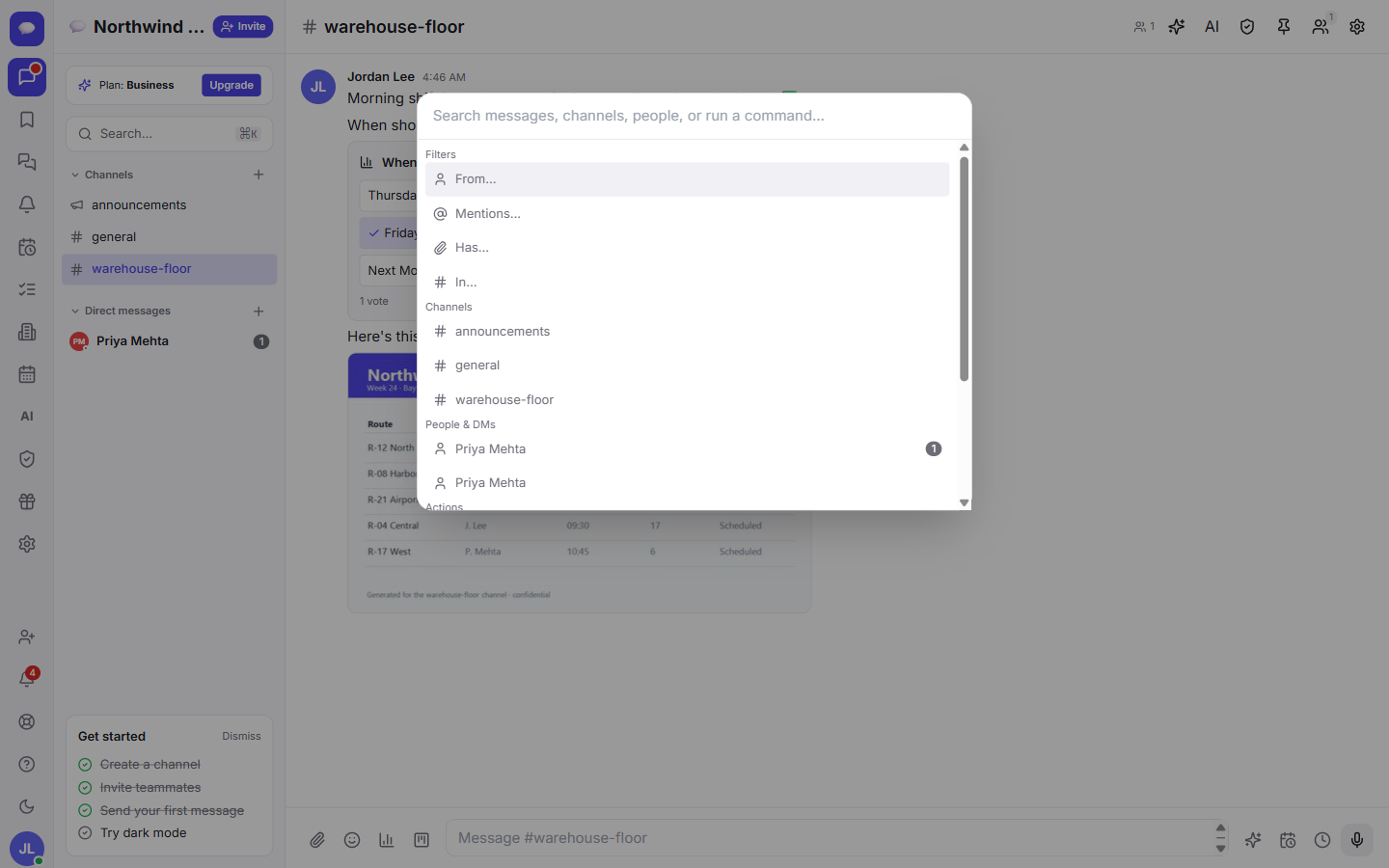
Two tools in one box
The palette does two jobs at the same time, so you rarely have to think about which mode you are in.
- Jump somewhere. Start typing the name of a channel, a person, or a direct message and it appears in the list. Press Enter to go straight there — no scrolling through the sidebar.
- Run a quick action. The same box also runs commands like Toggle theme (switch between light and dark) or New channel. Type a few letters of what you want and pick it from the list.
This is why a lot of people keep the shortcut in muscle memory: it is the one place that takes you anywhere or does the common things, without hunting through menus.
Search every message and file
Type a word or phrase and Fada searches the full text of messages across every channel you belong to. Matching words are highlighted in the results, so you can see why each one came up and pick the right one at a glance.
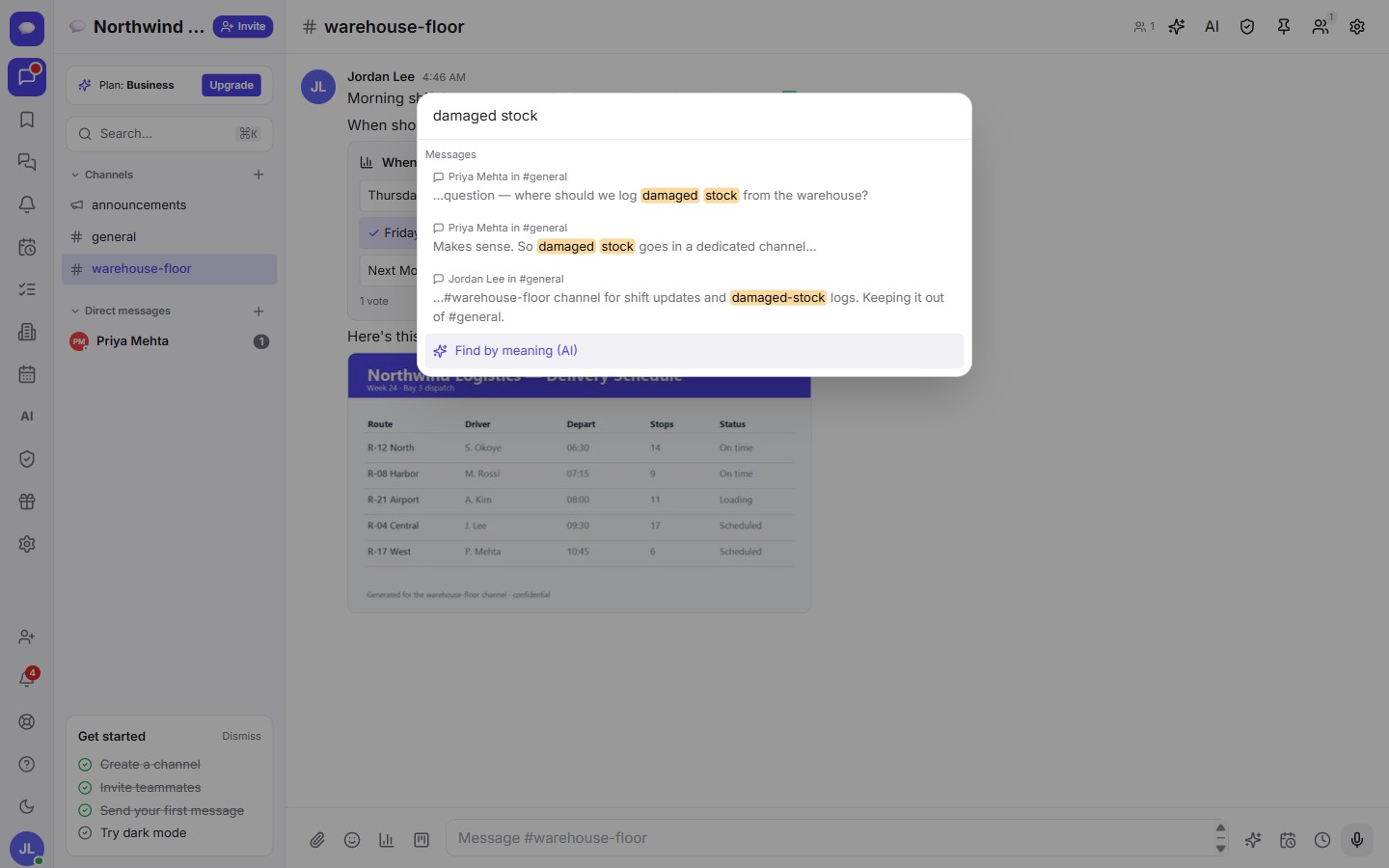
Search does not stop at messages. It also covers files and text transcribed from voice notes, so a quick voice memo someone left weeks ago is searchable like any other message. If your team likes recording quick updates, our guide on turning voice notes into searchable text explains how that transcription works.
Narrow it down with filters
A plain keyword search is often enough, but when a busy channel returns too many hits, the palette gives you filters to zero in:
- From a person — only messages someone specific wrote.
- Mentions — messages where a particular person was tagged.
- Has — messages that include an attachment.
- In a channel — limit the search to one channel.
Combine them however you like. "Invoices from Sara that have an attachment in Accounting" is the kind of question this turns into a two-second lookup instead of a scroll. Once you have found the thread you were after, you can jump in and reply, react, or branch it off — see messages, threads and reactions for how conversations stay organised.
Find by meaning, not just words
Sometimes you remember what was said but not the exact words that were used. That is where Find by meaning comes in: it runs an AI (semantic) search that understands the intent behind your query, not only literal matches. Search for "the delivery that was late" and it can surface the right conversation even if nobody used those exact words.
Find by meaning is available on Business plans. It is part of the same AI toolkit that powers the rest of the app — if you want to see what else the assistant can do, take a look at the AI assistant guide.
A few things worth knowing
- Search only ever shows you messages and files you already have access to. The palette never exposes a private channel you are not a member of.
- Because everything lives in one searchable place, you do not have to remember which app a file went into — it is all in Fada, in the language your team uses, with comfortable multilingual reading.
- Fada is free to start with no credit card and includes 300 pooled transcription minutes. Business adds semantic Find by meaning, raises transcription to 900 pooled minutes, and is one flat monthly price for up to 25 members. You can even self-host your data if your business needs to keep everything in-house.
Make it a habit
The single best productivity tip in Fada is small: stop reaching for the mouse to navigate. Press Cmd + K or Ctrl + K, type the first few letters of a channel, person, or command, and let the palette take you there. Within a day it becomes second nature, and finding a six-week-old message stops being a chore.
If you have not set up your team yet, start a free Fada workspace and try the command palette on your very first day — it is the feature people miss most when they go back to anything else.
Bring your team together on Fada
Create your workspaceKeep reading
How to Search Your Team Chat and Find Any Message, File or Decision in Seconds
Find any message, file or transcribed voice note in Fada. Search once across every channel you belong to and get the answer in seconds.
Run a poll and pin the decision in Fada
Ask the team a question, collect votes, and pin the outcome so a decision never gets lost in the scroll.