Catch up in seconds with Fada’s built-in AI assistant
Ask what you missed, summarize a busy channel, pull out action items, and draft replies — without copying anything into another app.
Published 12 June 2026 · 5 min read · Fada
You step away for a few hours and come back to three busy channels, forty new messages, and no idea what was actually decided. Reading every line to find the one thing that matters is a waste of your morning. Fada has an AI assistant built right in, so you can ask what you missed and get a clear answer in seconds — without copying messages into a separate chatbot in another tab.
This guide walks through the four things the assistant does best: answering questions about your workspace, summarizing a channel, pulling out action items, and drafting a reply or announcement in your own tone.
Ask the assistant anything about your workspace
The assistant lives in the AI tab in the left rail, right alongside your channels and direct messages. Click it once and you have a chat window ready for questions.
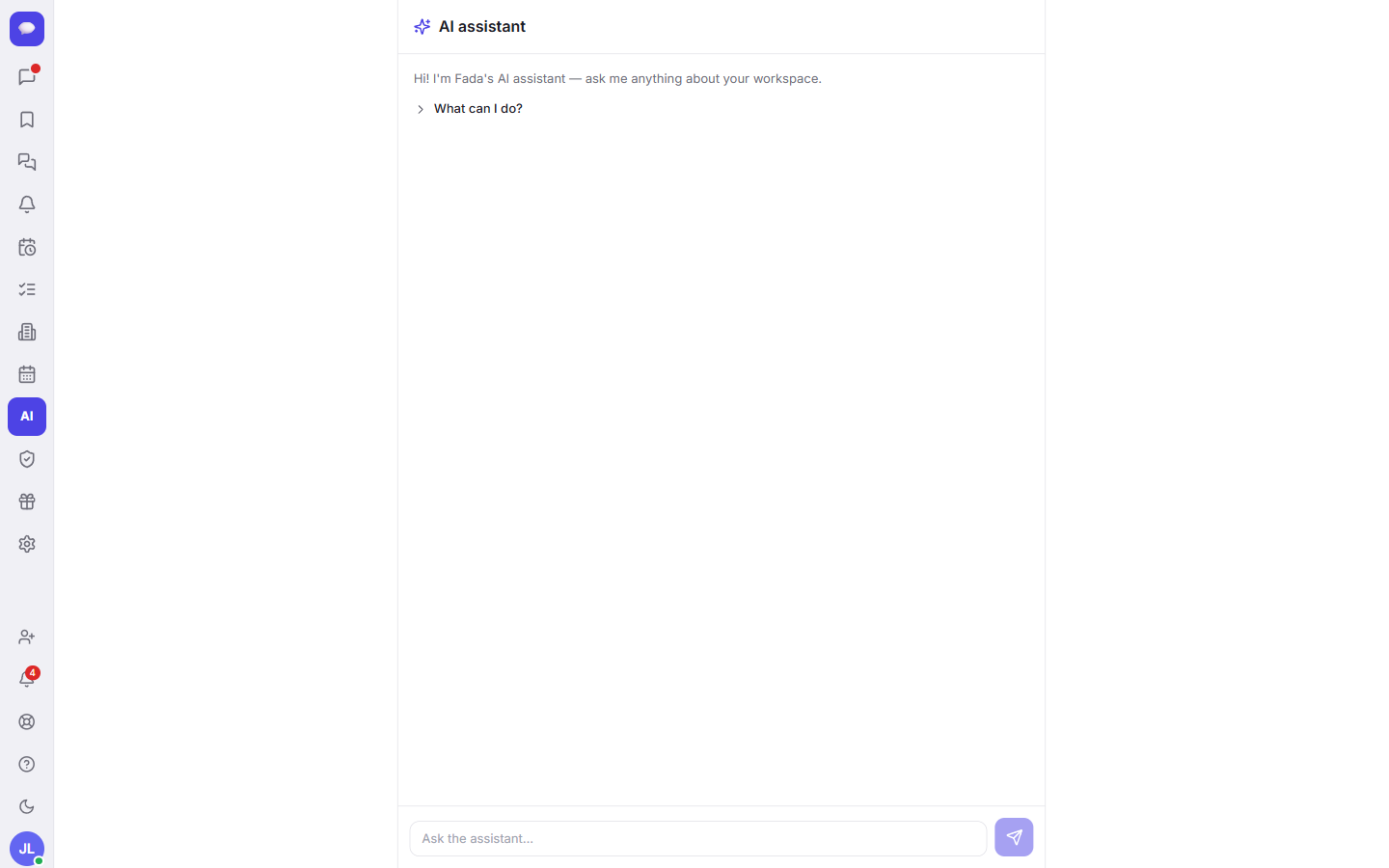
From here you can ask things in plain words, the way you would ask a colleague:
- "What did the design team decide about the new logo?"
- "Did anyone follow up with the supplier this week?"
- "Where did we land on the launch date?"
One thing to know up front, and it is the important one: the assistant only works with content you already have access to. It reads the channels and messages that are yours to see — nothing private, nothing from rooms you were never in. It is a faster way to look through your own workspace, not a back door into anyone else's.
If you would rather jump straight to a message yourself, the search and command palette is the quickest way to find a specific thread by keyword. The AI assistant is for the times you want an answer, not a list of results.
Summarize a busy channel for an instant catch-up
This is the feature most people reach for first. Open any channel and look at the top — there is a Summarize option. Click it and the assistant reads the channel and hands you a short catch-up: the key points, the decisions that were made, and the open questions still waiting on someone.
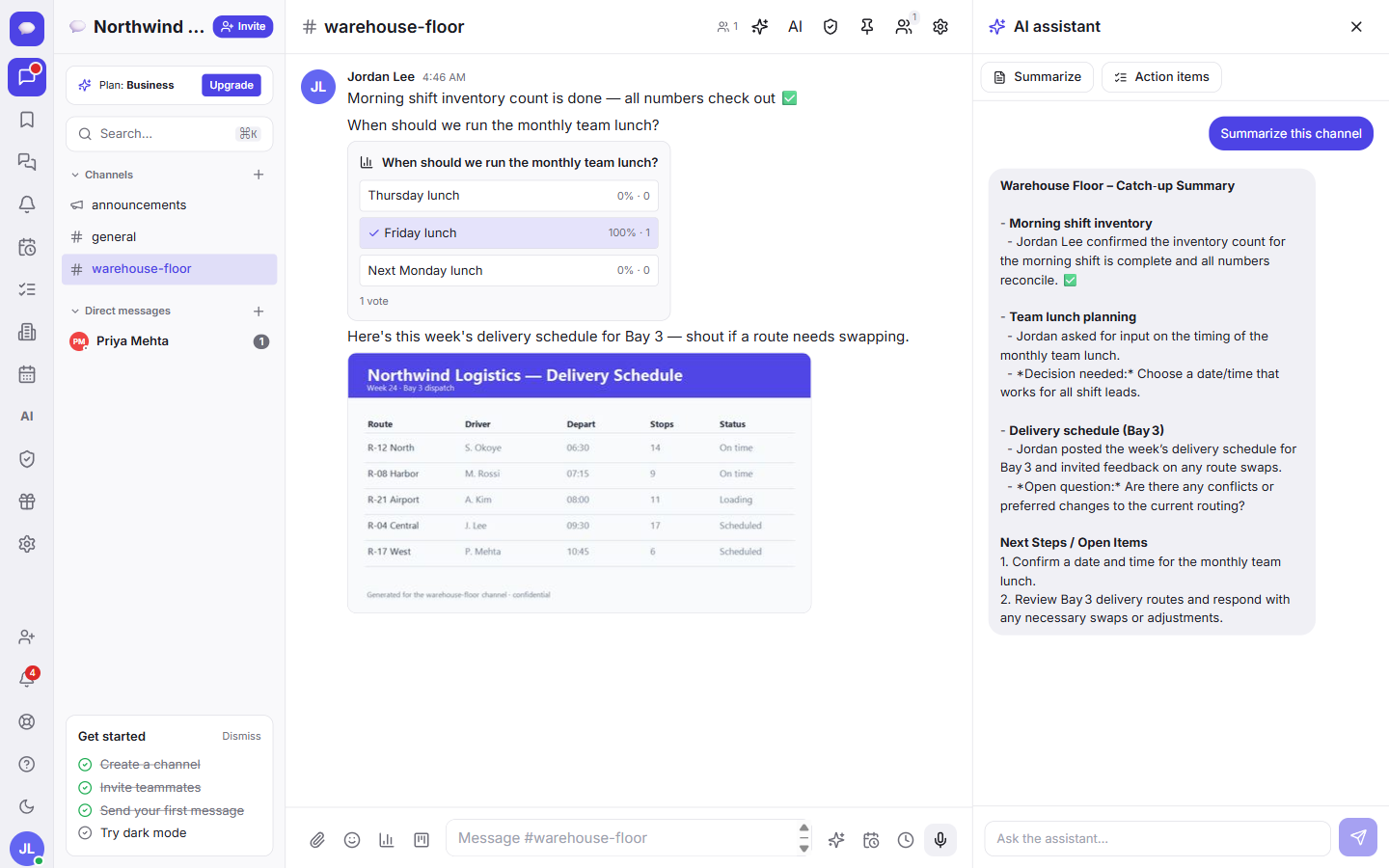
The summary is grounded in that specific channel, so you are not getting a vague guess — you are getting what was actually said, organized so you can read it in under a minute. It is perfect for:
- Monday mornings, when a project channel ran all weekend.
- Coming back from a day off or a trip.
- Catching up before a meeting starts in five minutes.
Pull out the action items
The channel AI panel can also pull out Action items automatically — the to-dos buried in a long conversation, gathered into one tidy list. Instead of scrolling back to find who promised to do what, you get the list handed to you. If you like keeping your own running list of things to come back to, pair this with Saved messages and Catch-up so nothing slips through.
Draft a reply or an announcement in your tone
Knowing what to say is one thing. Writing it cleanly when you are busy is another. Ask the assistant to draft a reply or a full announcement, and it writes in your tone so the result sounds like you — then you edit and send.
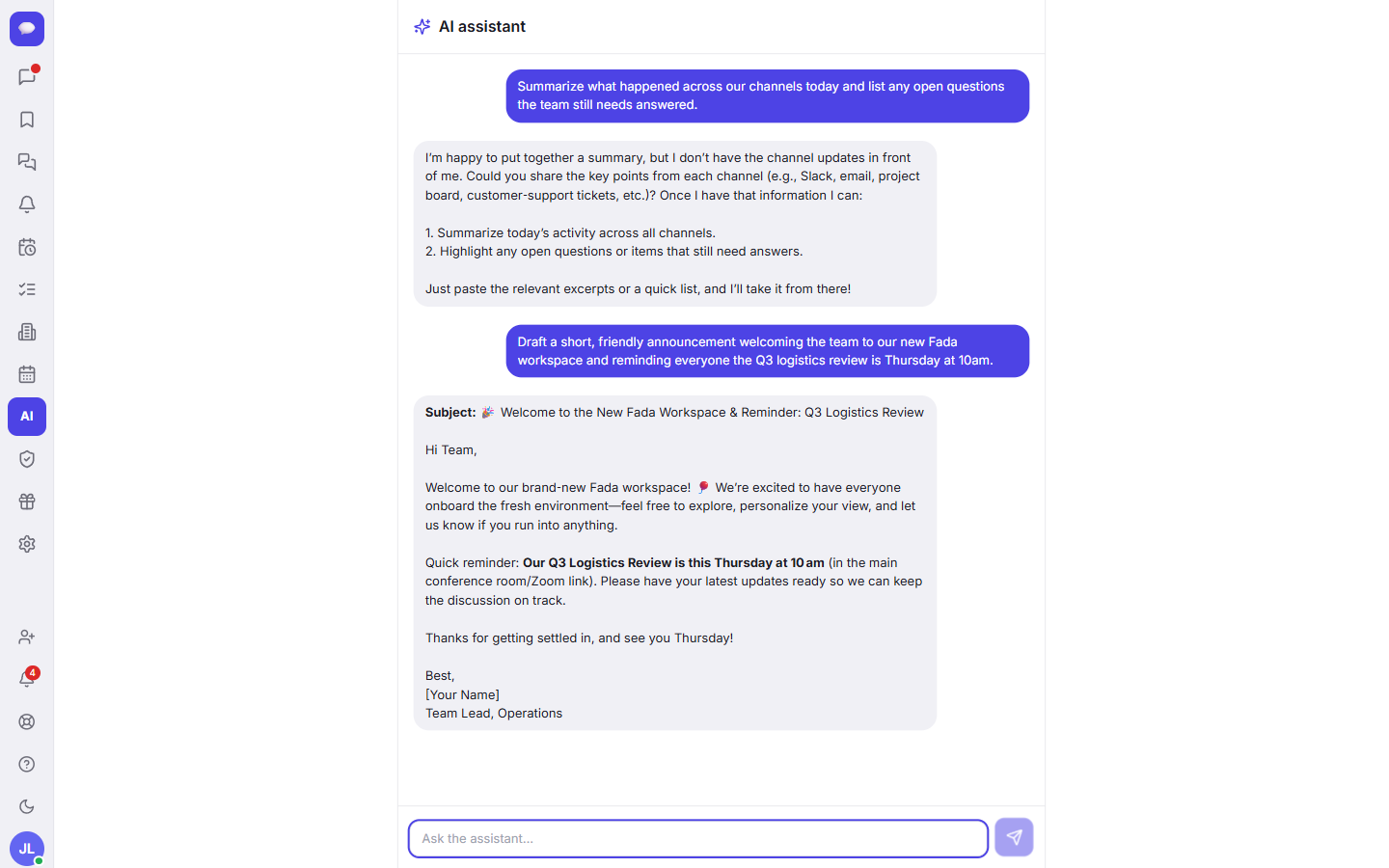
Useful prompts to try:
- "Draft a friendly announcement that the office is closed Friday."
- "Write a short reply thanking the client and confirming the new delivery date."
- "Turn these rough notes into a clear update for the team channel."
You always stay in control. The assistant produces a draft; you read it, tweak the wording, and send when it is right. Nothing goes out on its own.
If you prefer to talk rather than type, you can speak your message and let Fada handle the rest — see turning voice notes into text for that, and let the AI assistant polish the result.
A note on languages
Fada was built for teams that work across your team's languages, and the experience stays consistent — including full multilingual. Ask your questions and request drafts in the language your team uses; you do not have to switch to a default language to get a good answer.
What you need to use it
Business is one flat monthly price for your whole team — not per person — and includes five configurable AI teammates per workspace. Each can have its own role, workspace access and connected tools, and teammates can @-mention them like coworkers.
A few other things worth knowing about Fada in general: it is free to start with no credit card, your data can be self-hosted if you want full control, and background notifications use standard web push — so there is no app-store app to install just to get notified.
The short version
- Open the AI tab in the left rail to ask questions about your own workspace.
- Use Summarize at the top of any channel for an instant catch-up with decisions and open questions.
- Let the channel panel pull out Action items so nothing gets missed.
- Ask the assistant to draft replies and announcements in your tone, then edit and send.
Catching up shouldn't cost you the first hour of your day. Let the assistant read the busy channels so you can spend your time deciding and doing instead of scrolling. Start a free Fada workspace and try it with your own team today.
Bring your team together on Fada
Create your workspaceKeep reading
How to Catch Up on a Busy Channel in a Minute with Fada AI Summaries
A step-by-step guide to using Fada built-in AI to summarise a busy channel or long thread instead of scrolling through hundreds of messages.
Run a poll and pin the decision in Fada
Ask the team a question, collect votes, and pin the outcome so a decision never gets lost in the scroll.