Save messages and catch up on what you missed
Bookmark important messages, see every thread you are part of in one place, and never lose a decision in the scroll.
Published 13 June 2026 · 4 min read · Fada
Someone shares the new price list, a client's address, or a quick "yes, go ahead" decision in the middle of a busy channel. An hour later it is buried under fifty other messages and you are scrolling forever to find it. Fada gives you three simple tools so that never happens again: bookmark the messages that matter, see all your conversations in one list, and tell at a glance where people need you. Here is how to use them.
Bookmark a message so you can find it later
When a message is worth keeping handy — a decision, a link, an address, a file — save it. It then lives in one tidy list, no matter which channel it came from.
Save the message
- Hover over (or tap) the message you want to keep.
- Open its More actions menu (the small menu that appears on the message).
- Choose Save.
That is it. The message is bookmarked. You can save messages from any channel, direct message, or group chat.
Find everything you saved
In the left rail you will see a bookmark icon — that is your Saved tab. Open it and every message you have bookmarked is collected there, pulled from all your channels into a single place. No hunting, no scrolling.
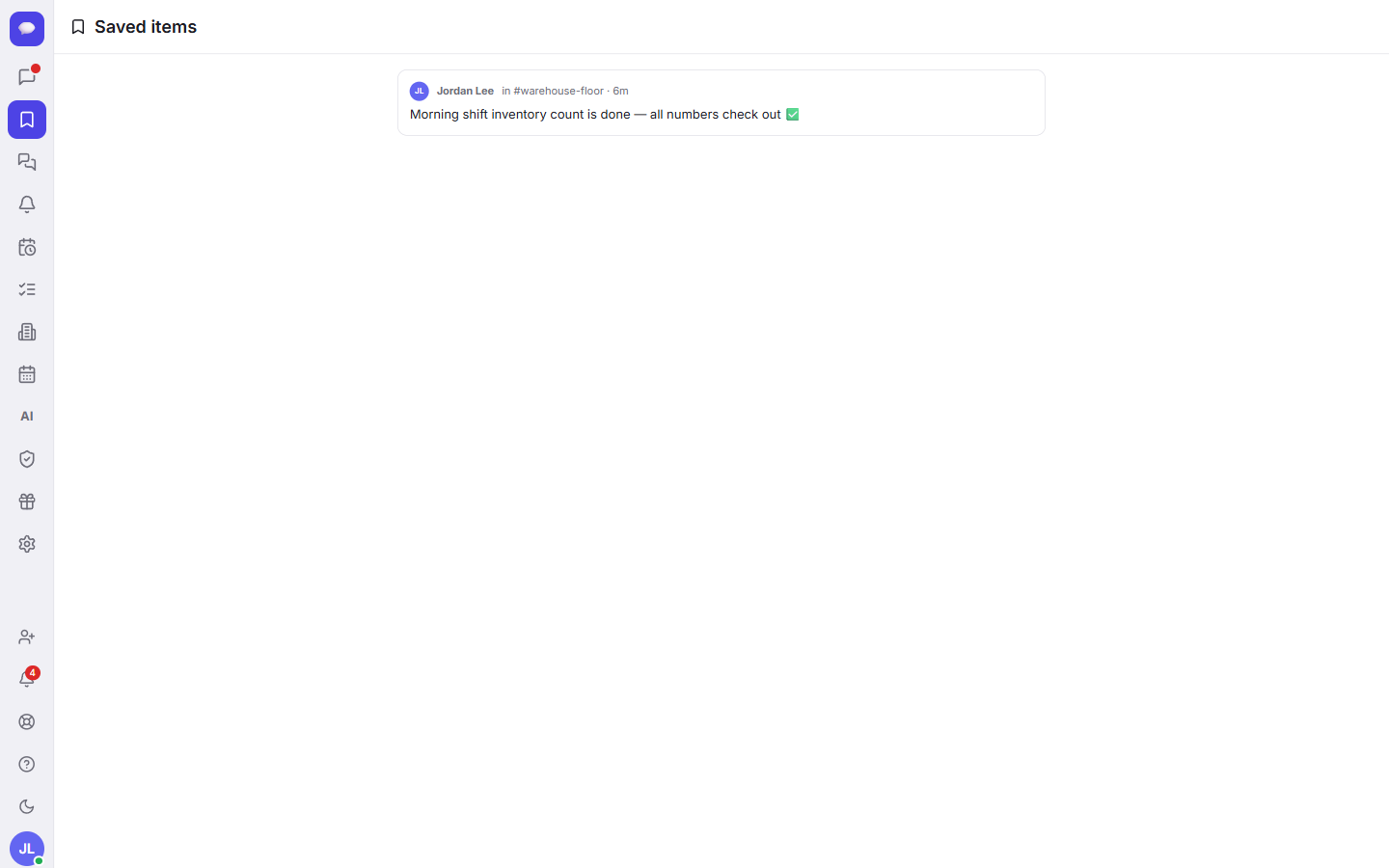
Think of Saved as your personal shortlist: the price you agreed on, the address for tomorrow's delivery, the file the client sent. Click any item to jump straight back to it in its original conversation.
See every thread you are part of
A lot of real work happens in replies. Someone answers a question under a specific message, a small side-conversation starts, and the details you need end up inside a thread rather than the main channel. If you reply in five different threads across three channels, keeping track of them by scrolling is hopeless.
The Threads tab solves this. It shows every conversation you are part of, with the newest replies first, so you can keep up with side-conversations without hunting through channels one by one.
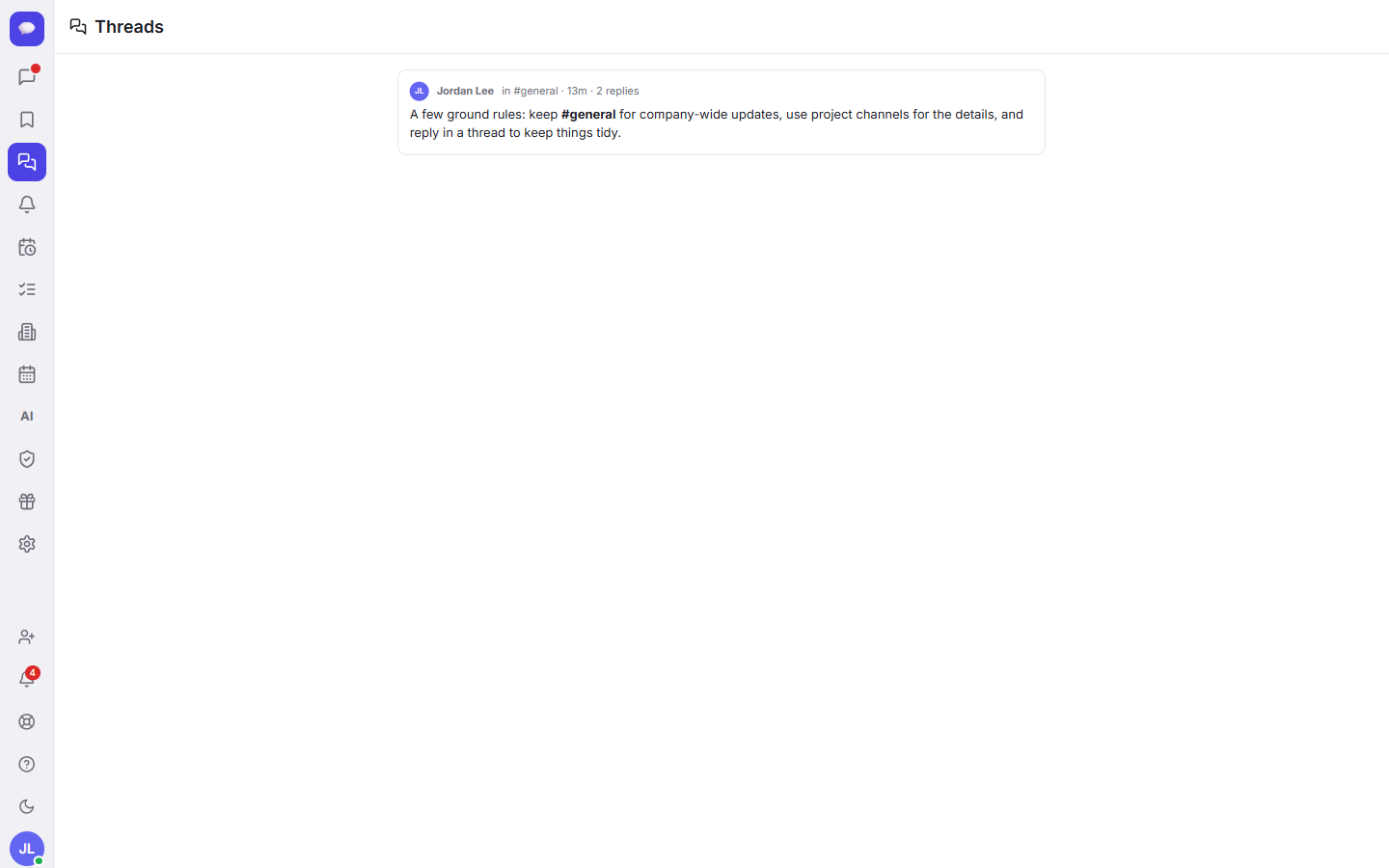
Open Threads when you start your day, work down the list, and you will have answered everyone who replied to you without missing a single one. If threads and reactions are new to you, the short guide on messages, threads, and reactions walks through the basics.
Know at a glance where you are needed
You do not need to open every channel to see what changed. Fada shows you on the Chats tab:
- Unread channels get a badge, so you can see which conversations have new messages waiting.
- Mentions show a count, so you know exactly where someone tagged you and needs a reply.
This means you can scan the left rail in a couple of seconds and head straight to the place that actually needs you, instead of clicking through everything just in case.
Catch up on a busy channel in seconds
Sometimes you come back to a channel that has had a hundred messages while you were out, and even with badges that is a lot to read. This is where Fada's AI helps. Open the channel and use Summarize to get a short recap of what was discussed and decided, so you are caught up in seconds instead of minutes. You will find the full walkthrough in the AI assistant guide.
A good catch-up routine looks like this:
- Glance at Chats for unread badges and mention counts.
- Open Threads and clear any replies aimed at you.
- For any channel that exploded while you were away, use Summarize to get the gist.
- As you go, Save anything you will need again later.
If a message contains something you have to act on by a certain time, you can also turn it into a reminder so it comes back to you at the right moment instead of relying on memory.
A quick note on plans
Saving messages, the Threads tab, and the unread and mention badges are part of everyday Fada. The AI Summarize feature is part of the assistant, and the more advanced AI capabilities are available on Business plans. Fada's Business plan is one flat monthly price for your whole team — not per person — so adding teammates never raises the bill.
Why this matters for a small team
You are free to start with no credit card, and Fada is built for real, multilingual teams: your team can work naturally, with comfortable multilingual reading. Background notifications use standard web push, so you get alerts without installing anything from an app store, and if you need full control of your data, Fada can be self-hosted.
Put together, Saved, Threads, and the unread and mention badges mean decisions stop getting lost in the scroll. Bookmark what matters, check your threads each morning, and let the AI recap the noisy channels — and nothing important slips past you. Ready to keep your team's decisions in one place? Start a free Fada workspace and try it with your team today.
Bring your team together on Fada
Create your workspaceKeep reading
How to Use Threads to Keep Conversations Organized
Stop your team channel becoming one endless scroll. Learn how to reply in a thread in Fada so ten conversations can happen at once without burying each other.
Messages, threads and reactions: the basics of chatting in Fada
Send messages, react with emoji, keep side-conversations in threads, and pin the things that matter — the everyday building blocks of Fada.