Set reminders on messages so nothing slips
Turn any message into a reminder — in 20 minutes, tomorrow, or next week — and let Fada nudge you when it is time.
Published 13 June 2026 · 4 min read · Fada
You read a message, you know you need to handle it later, and then the day swallows it. By the time you remember, it is two days old and the person is waiting. Fada fixes this with one small habit: when you cannot deal with a message right now, turn it into a reminder. Fada brings it back to you at the exact moment you chose — not as a vague mental note, but as a real nudge in the app and on your devices.
This guide shows you how to set a reminder on any message, where all your reminders live, and how Fada lets you know when one is due. It takes about two minutes to learn and it works the same in your team's languages, including full multilingual.
Set a reminder on a message
You can turn any message in Fada into a reminder — a question from a teammate, a client request in a group chat, a link you want to revisit, anything.
1. Open the message's More actions menu
Hover over (or tap) the message you want to come back to, and open its More actions menu. This is the same menu you use for replies and reactions.
2. Choose Remind me about this
From the menu, pick Remind me about this. A small picker opens so you can say when you want to be nudged.
3. Pick when
Choose one of the quick presets, or set your own time:
- In 20 minutes
- In 1 hour
- In 3 hours
- Tomorrow at 9am
- Next week
- A custom time, if none of the presets fit
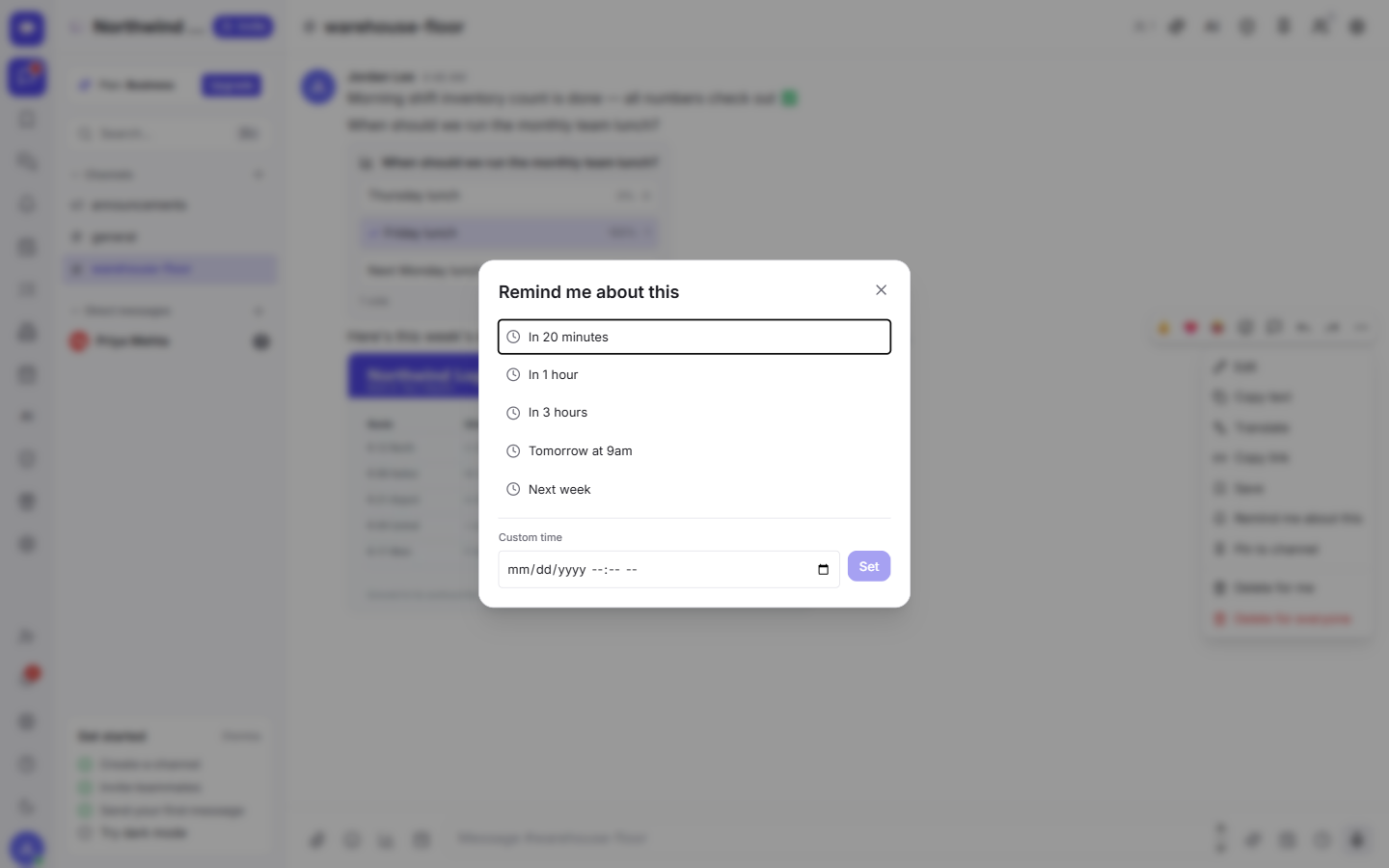
That is it. The message is now scheduled to come back to you, and you can keep moving without holding it in your head.
See all your reminders in one place
Every reminder you set lands in one tidy list, so nothing is scattered across conversations.
Open the Reminders tab — the bell icon in the left rail. It shows everything you have asked to be reminded about, in one place, so you can scan what is coming and clear things as you handle them.
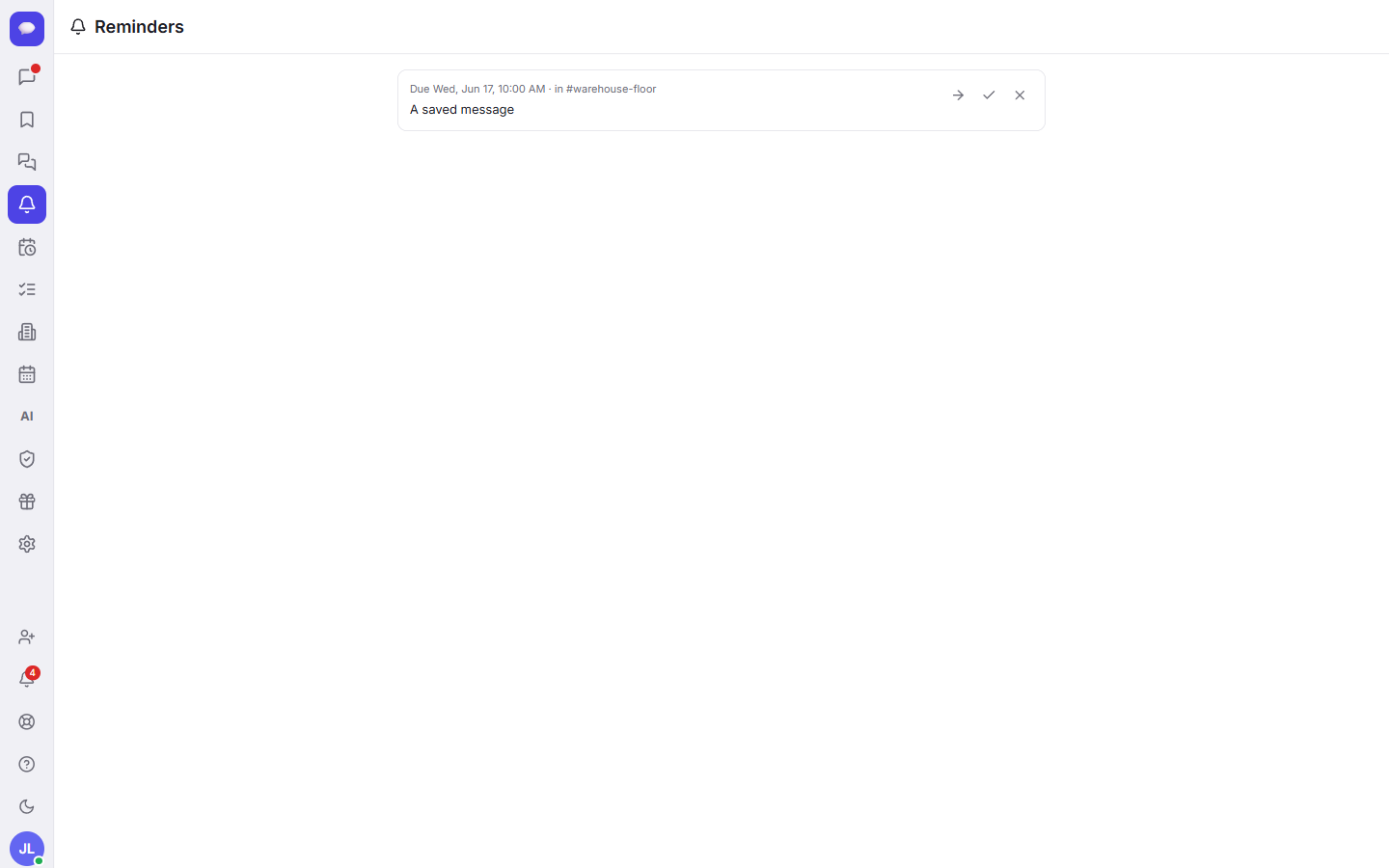
This is the view to check at the start of your day, or whenever you want a quick read on your open follow-ups.
How Fada nudges you when one is due
When a reminder's time arrives, Fada lets you know two ways:
- In the app, so you see it the moment you are looking at Fada.
- By web push, so the nudge reaches your desktop or phone even when Fada is not open — as long as you have notifications turned on.
Web push is the standard browser notification system, so there is no app-store download needed to get nudges on your devices. If you have not set notifications up yet, our guide on notifications and web push walks through it in a couple of clicks. On a phone, you add Fada to your Home Screen first, and the nudges follow you there too.
A simple way to use reminders well
The best use for reminders is follow-ups. You see a message you cannot deal with right now — you are mid-task, or it is waiting on someone else — so instead of leaving it to luck, you set it to come back exactly when you can act on it.
A few patterns that work nicely:
- A client asks for a quote and you need to check a price first — remind yourself In 1 hour.
- A teammate sends something you should review after your current task — In 3 hours.
- A message that is really tomorrow's problem — Tomorrow at 9am, so it greets you with your morning.
- Something to revisit after a busy stretch — Next week.
Reminders pair well with two other habits. Use saved messages and Catch up to keep a personal shortlist of things to come back to and to skim what you missed while you were away. And because reminders sit right inside the message tools, you can reply, react, or start a thread from the same spot — see messages, threads, and reactions for how those fit together.
Worth knowing
Fada is free to start, with no credit card. When your team is ready for more, Business is one flat monthly price for the whole team — not per person — so you are not penalized for adding people. Fada treats multilingual team workflows, and teams that need to keep their data in-house can self-host. The point of reminders is the same across all of it: small things stop slipping, and your customers and teammates stop waiting.
Stop relying on memory. The next time a message needs a "later," give it a time instead — and let Fada bring it back right when you can act. Start a free Fada workspace and set your first reminder today.
Bring your team together on Fada
Create your workspaceKeep reading
Run a poll and pin the decision in Fada
Ask the team a question, collect votes, and pin the outcome so a decision never gets lost in the scroll.
Share files, images and documents in Fada
Attach documents, images and recordings to any message — with previews — so files live with the conversation instead of getting lost.