Turn on notifications and desktop or mobile push
Stay on top of messages, mentions and reminders with in-app and web push notifications — on desktop and on your phone.
Published 10 June 2026 · 4 min read · Fada
Missing a message because you didn't have the tab open is a small thing that adds up fast — a client waits, a teammate gets blocked, a reminder slips. Fada keeps you in the loop two ways: a notifications panel inside the app that gathers everything in one place, and web push so your phone or computer buzzes even when Fada is closed. Here is how to switch both on and what to expect.
What the notifications panel collects
Click the bell icon in the left rail to open your notifications panel. It pulls together everything that needs your attention in one place: your mentions, replies to your messages, direct messages, and reminders. When you have caught up, hit Mark all read to clear the unread count.
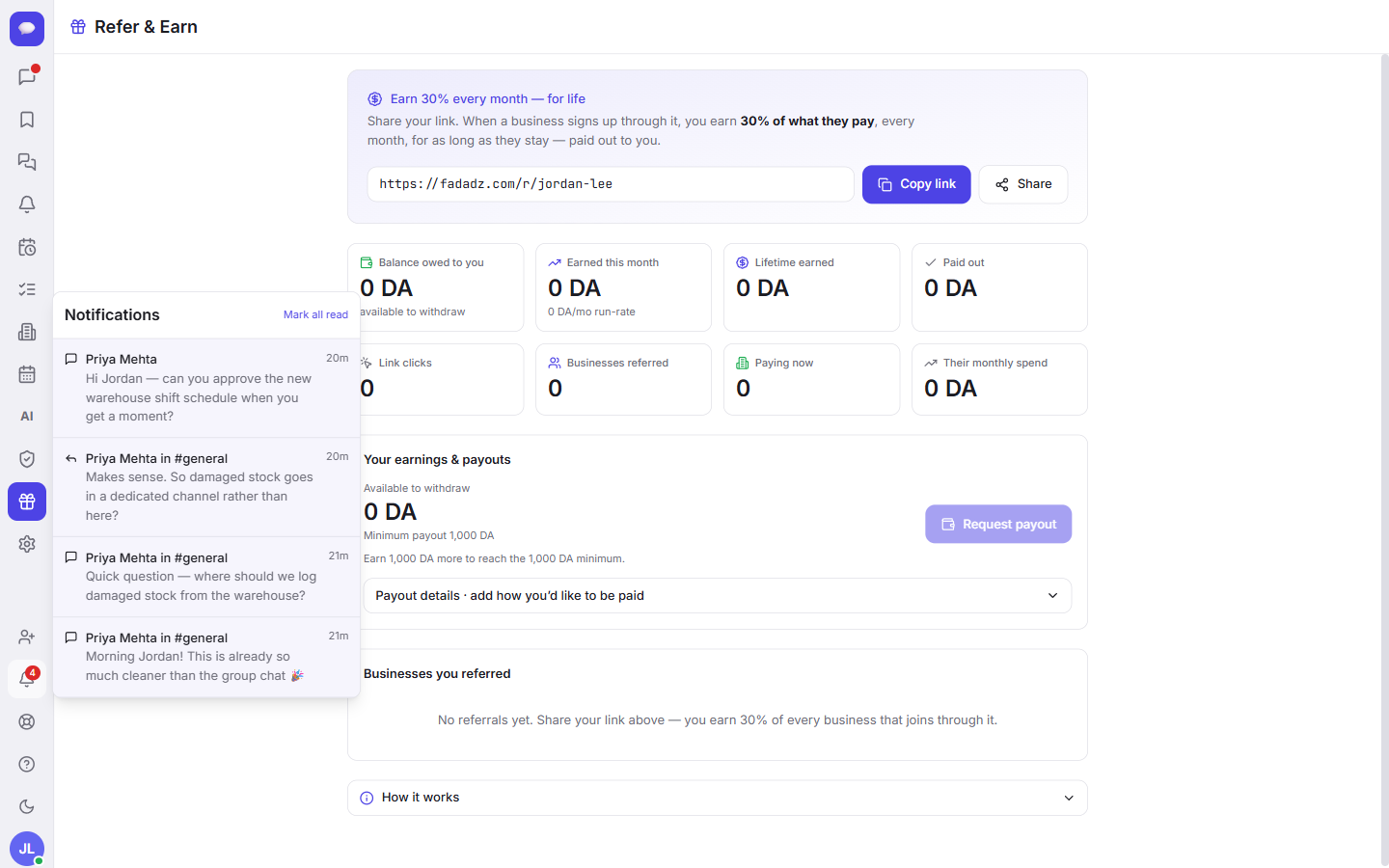
Every notifiable event flows into this same panel, so you never have to dig through channels to find what changed:
- New messages and direct messages
- When someone @mentions you
- Replies to your messages
- Reminders you have set
- Meeting invites and RSVPs
The panel is great while you have Fada open. To get notified when it is closed — say the tab is in the background or your phone is in your pocket — you also want web push, which is the next step.
Turn on web push (desktop and mobile)
Web push is the notification that pops up from your browser or phone even when Fada is not on screen. It is standard web push, the same technology your bank or your email app uses — there is no separate app to download from an app store.
To switch it on:
- Open the profile menu (your avatar).
- Choose Notifications.
- Your browser will ask for permission to show notifications. Click Allow.
That is it. Once you allow it, Fada can reach you with a push notification for the same events listed above — messages, direct messages, mentions, replies, reminders, and meeting invites and RSVPs. The same steps work on both desktop and mobile, so it is worth doing on every device you use.
If the browser doesn't ask, or you said No
Browsers only ask once. If you accidentally dismissed the permission prompt or clicked Block, the browser will not ask again on its own. Open your browser's site settings for Fada, set notifications back to Allow, then return to the profile menu and choose Notifications again. New to the app and still finding your way around the rails and menus? Our getting started with Fada walkthrough covers the layout.
Getting push on your phone
Phones have one extra requirement: push notifications need Fada installed as an app, meaning added to your Home Screen. Once it is on your Home Screen, you open Fada like any other app and the Notifications step above works the same way.
A couple of things to know:
- iPhone and iPad need iOS 16.4 or later. On older versions, the notification feature simply is not available — the operating system, not Fada, sets that limit. Update iOS first, then add Fada to your Home Screen.
- Android works once Fada is added to the Home Screen, no special version needed.
Because Fada uses standard web push, you will not find it in the App Store or Google Play. You add it straight from the browser instead. We walk through that — Share, then Add to Home Screen — step by step in install Fada on your phone. Do that once and your phone is ready for push.
Make reminders work for you
Reminders are one of the most useful things to receive as a push: a nudge to follow up with a client, to prep for a meeting, or to circle back on a thread. Set them up the way that suits how you work, and they land in both the notifications panel and as a push if you have it enabled. See reminders for the full how-to.
A quick checklist
If you want to be reachable everywhere, do these once per device:
- Allow web push from the profile menu, then Notifications, on your computer.
- On your phone, add Fada to your Home Screen first (iPhone or iPad on iOS 16.4 or later), then allow web push the same way.
- Keep the bell panel handy for a tidy, in-app view, and use Mark all read to stay at inbox zero.
With that done, a direct message at 9am or a meeting RSVP in the afternoon reaches you wherever you are — no tab left open, no app store, nothing to babysit.
Fada is free to start with no credit card, and when your team grows, Business is one flat monthly price for the whole team rather than a charge per person. your team can work naturally with comfortable reading, and your data can be self-hosted if you need it. If you have not set up your space yet, start a free Fada workspace and turn on notifications in a couple of minutes.
Bring your team together on Fada
Create your workspaceKeep reading
Run a poll and pin the decision in Fada
Ask the team a question, collect votes, and pin the outcome so a decision never gets lost in the scroll.
Share files, images and documents in Fada
Attach documents, images and recordings to any message — with previews — so files live with the conversation instead of getting lost.