Install Fada on your phone (add it to your Home Screen)
Fada works on any phone — install it like an app from your browser, with no app store needed, and get push notifications on the go.
Published 9 June 2026 · 5 min read · Fada
Most of your team's chatting, calls and quick decisions happen away from a desk. The good news: you don't have to wait for an app store, hunt for the right download, or worry about which phone everyone uses. Fada installs straight from your phone's browser, opens full-screen like a normal app, and can buzz your phone with notifications when someone messages you. This guide walks you through it on both Android and iPhone, in about two minutes.
Fada is a progressive web app — a website that behaves like an installed app once you add it to your Home Screen. There's nothing to approve in an app store and nothing heavy to download, which also means it stays light on modest data plans and works well on older phones.
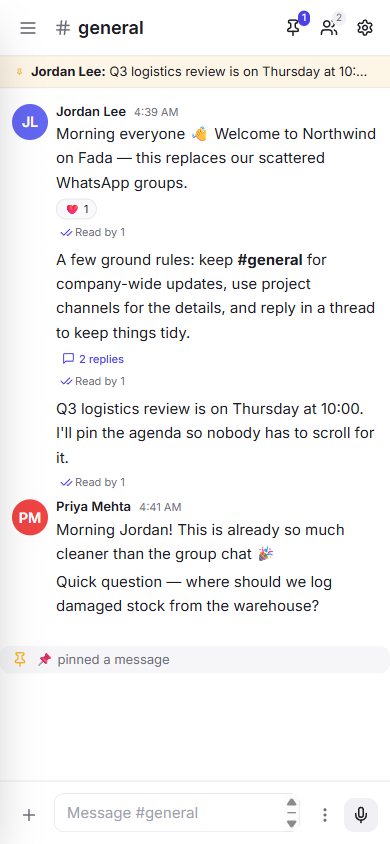
Why install it instead of just using the browser
You can absolutely use Fada from a browser tab. But adding it to your Home Screen gives you three real upgrades:
- A tap-to-open icon on your Home Screen, just like any app — no typing the address each time.
- A full-screen view with no browser bars in the way, so you get the whole workspace on a small screen.
- Push notifications for new messages and mentions, so you hear about them even when Fada is closed.
If you're brand new to Fada, it's worth skimming getting started with Fada first so you know your way around channels and direct messages. Then come back here to put it on your Home Screen.
Install Fada on Android
Android phones (Chrome and most Chrome-based browsers) make this quick.
Step 1 — Open Fada in your browser
Open Chrome and go to fadadz.com. Sign in, or start a free Fada workspace if you don't have one yet — it's free to begin and there's no credit card required.
Step 2 — Open the browser menu
Tap the three-dot menu in the top-right corner of Chrome.
Step 3 — Choose Add to Home screen
In the menu, tap Add to Home screen (on some phones it appears as Install app). Confirm the name, and Fada's icon lands on your Home Screen. Tap it and Fada opens full-screen, just like a native app.
Install Fada on iPhone or iPad
On Apple devices, the install option lives in Safari's Share menu rather than a browser menu.
Step 1 — Open Fada in Safari
This one matters: open fadadz.com in Safari, not Chrome. The Add to Home Screen option only appears in Safari on iPhone and iPad. You'll also need iOS 16.4 or later for Fada to receive notifications once installed.
Step 2 — Tap Share
Tap the Share button — the square with an arrow pointing up — at the bottom of the screen (or at the top on iPad).
Step 3 — Tap Add to Home Screen
Scroll down the Share sheet and tap Add to Home Screen, then tap Add to confirm. Fada's icon now sits on your Home Screen and opens full-screen when you tap it.
Find your way around on a small screen
Once Fada is open, the screen is tuned for one-handed use. On a desktop, your channels and direct messages sit in a column on the left. On a phone, that column tucks away to save room.
To reach it, tap the menu button at the top-left. That opens your channels, direct messages and every other feature. Tap a channel or person to jump straight into the conversation.
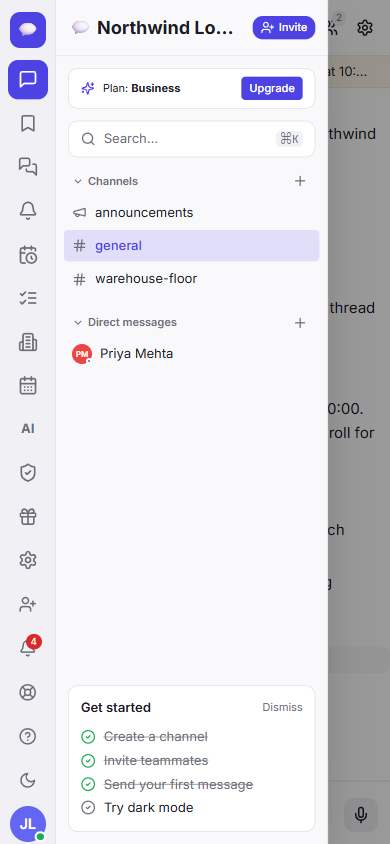
Everything you do on a computer is here too — sending messages, replying in threads, sharing files — just laid out for a smaller screen. your team can work naturally, with comfortable multilingual reading, so the app reads correctly whichever language your team works in.
Turn on notifications so you don't miss messages
Installing Fada is what makes notifications possible on a phone. After you've added it to your Home Screen and opened it from the icon, Fada can send you background notifications for new messages, mentions and replies using standard web push — the same technology your other favourite apps use, with no separate app-store download.
A quick note for iPhone and iPad users: notifications only work when you open Fada from the Home Screen icon (not from a Safari tab), and only on iOS 16.4 or later. On Android, push works once Fada is installed.
For the full picture — including how to allow notifications when your phone asks, and how to manage them — see notifications and web push.
A few things worth knowing
- No app store, ever. Fada updates itself like a website, so you always have the latest version without a manual update.
- Light on data and older phones. It's built to be fast on modest data plans and budget devices, which matters when your team is on the move.
- One flat price when you grow. Fada is free to start. The Business plan is a single flat monthly price for your whole team, not per person — so adding teammates doesn't raise the bill.
- Your data, your choice. Fada can be self-hosted if your business needs full control over where its data lives.
You're set
That's it — Fada now lives on your Home Screen like any other app, opens full-screen, and can reach you wherever you are. Do the same on each teammate's phone and your whole team stays in sync on the go.
If you haven't set up your workspace yet, you can start a free Fada workspace in a couple of minutes — no credit card, no app store, just open it on your phone and add it to your Home Screen.
Bring your team together on Fada
Create your workspaceKeep reading
Connect WhatsApp to Fada: get customer messages in your team inbox
A step-by-step guide to linking your WhatsApp Business number to Fada with the official Cloud API — so customer messages land in your team inbox and everyone replies from one place. Includes every setting, link, and the gotchas that trip people up.
Getting started with Fada: create your workspace in under a minute
A step-by-step guide to creating your Fada workspace, finding your way around the app, and sending your first message — with a screenshot of every step.