Share files, images and documents in Fada
Attach documents, images and recordings to any message — with previews — so files live with the conversation instead of getting lost.
Published 14 June 2026 · 5 min read · Fada
How many times have you dug through email to find the one invoice the accountant sent, or scrolled a phone gallery looking for the photo a teammate snapped on site? In Fada, the file simply lives inside the conversation it belongs to. You attach it to a message, everyone sees a preview, and it stays right next to the decision it relates to — easy to find later, hard to lose.
This guide shows you how to share files, images and documents, where they go, and how much space you get.
Attach a file to a message
Sharing a file works the same way everywhere in Fada — in a channel, a group, or a one-to-one chat.
Step by step
- Open the channel or conversation where the file belongs.
- In the message box at the bottom, select the paperclip — the Attach file button.
- Choose a file from your computer or phone: a document, a spreadsheet, an image, a PDF, or a recording.
- Add an optional caption to explain what it is or what you need ("Signed contract — please countersign by Friday").
- Send the message.
That's it. The file is now part of the conversation, visible to everyone who can see that channel.
Previews and downloads
Fada shows your file in the most useful way it can:
- Images appear as an inline preview right in the message, so people can glance at them without opening anything.
- Documents and other files show up as a tidy card you can open or download with one click.
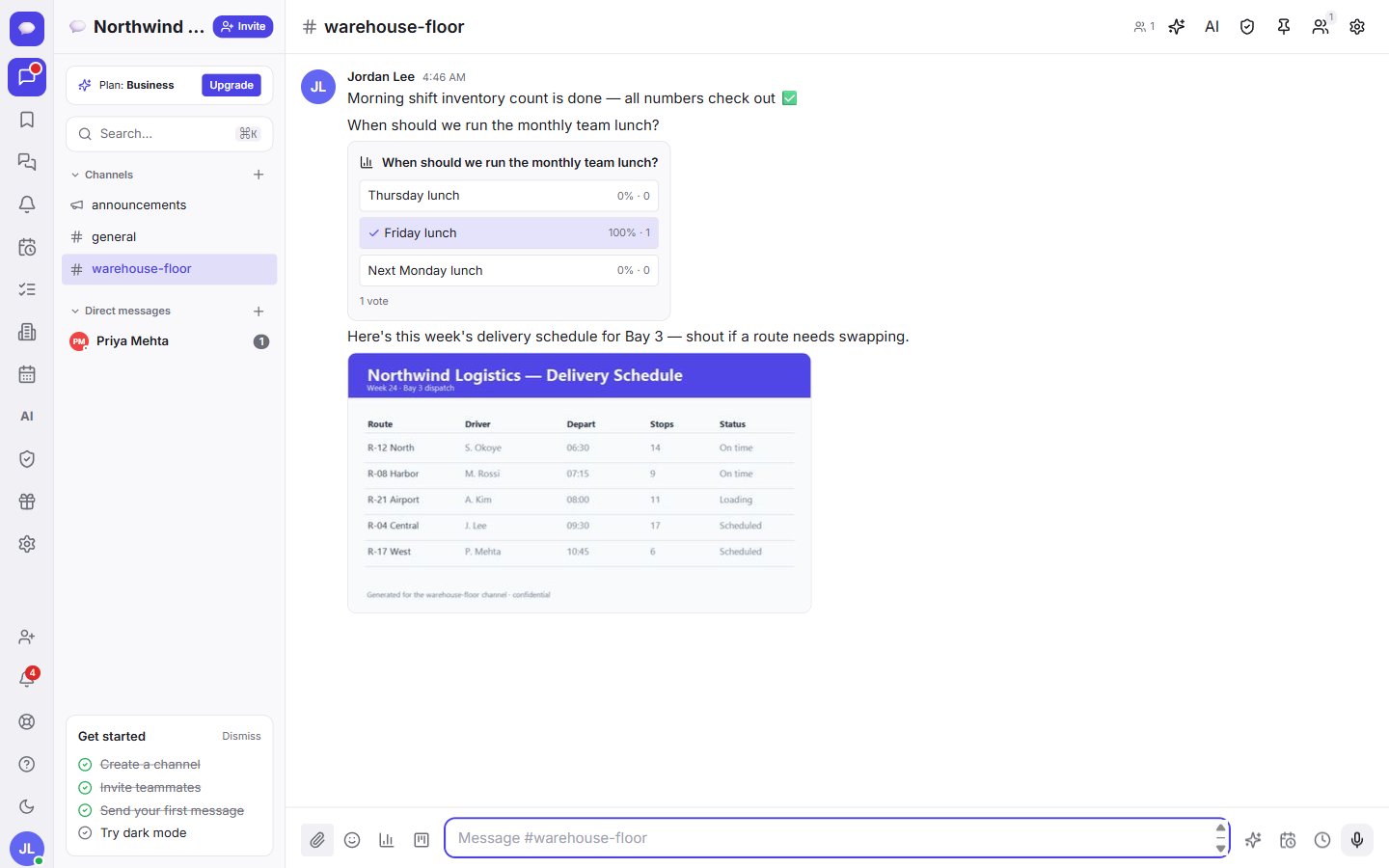
Select an image to open it full size. For a document, open it to read or download it to your device — whichever you need.
Why put files in the right channel
It's tempting to dump every file in one place, but Fada works best when a file sits in the channel it's about. Put the supplier quote in your purchasing channel, the design mockup in the project channel, the payroll sheet in finance.
When you do that, the file stays next to the conversation and the decision it belongs to. Six weeks later, anyone can scroll the thread and see the file, the discussion around it, and what the team agreed — all in one place. No "which version was final?" and no hunting through inboxes.
This pairs naturally with how Fada keeps discussions organised. If you haven't yet, it's worth reading how messages, threads and reactions keep replies tidy, so a busy channel with lots of attachments stays readable.
Finding a file later
Every file you share is searchable and kept in one organised place. So when you need the document the accountant sent last week, you don't scroll for ten minutes — you search for it.
Fada has a fast search and command palette that reaches across your whole workspace. Type a few words from the file name, the caption, or the surrounding conversation, and Fada surfaces it. Learn the shortcuts in search and the command palette — it's the quickest way to jump straight to a file or the chat it lives in.
How much storage you get
Files take up space, so here's exactly what you have to work with:
- Free plan: 5 GB of storage for your whole workspace.
- Business plan: 100 GB shared across the account.
Five gigabytes is plenty for a small team sharing day-to-day documents and the occasional image. If your team trades a lot of high-resolution photos, recordings, or large design files, Business gives you far more room to grow. Business is one flat monthly price for the whole team — not a per-user charge — so adding people doesn't change the bill.
A note on sensitive files
Files in a channel are visible to everyone in that channel, which is exactly what you want for shared work. But some things — banking details, passwords, a master API key — shouldn't sit in a chat at all. For those, Fada has a dedicated, access-controlled place: see the team vault for secrets, available on Business. Use channels for documents and media, and the vault for the handful of things that must stay locked down.
A few things worth knowing
- Fada is free to start, with no credit card required, so you can share files with your team today and decide on a plan later.
- your team can work naturally, with comfortable reading — captions and file names read correctly whichever language your team works in.
- If you'd rather keep everything on your own infrastructure, Fada can be self-hosted.
- Notifications about new files use standard web push, so teammates can be alerted on desktop and mobile without installing an app-store app.
Wrapping up
Sharing files in Fada is as simple as attaching them to a message — but the payoff is bigger than that. Your documents, images and recordings stop drifting around inboxes and phone galleries and start living where the work happens: next to the conversation, easy to preview, and searchable forever. Try it with your own team and feel the difference the next time someone asks "where's that file?"
Ready to keep your files and your conversations in one place? Start a free Fada workspace — no credit card needed.