Keep your clients organized with the Fada CRM
A simple clients directory built into your workspace — company details, contacts and deals, right next to the conversations about them.
Published 11 June 2026 · 5 min read · Fada
Most small teams keep their client list in three or four places at once: a spreadsheet, a phone's contacts, some sticky notes, and a chat thread where someone "definitely shared that email address." When a deal comes up, you waste ten minutes finding the right phone number before you can even start. Fada gives you a simple clients directory built right into your workspace, so the company details, the people you talk to, and the deals you are chasing all live in one place — next to the conversations about them.
This guide walks you through adding your first client, reading the directory at a glance, and connecting a client to the deal you are tracking.
Why keep clients inside your chat app?
Your team already talks about clients all day — who called, what they asked for, what you promised. The problem is that the record of the client and the conversation about the client live in two different apps. The Fada CRM closes that gap. The client's details sit a click away from the channel where your team discusses them, so nobody has to copy a phone number into a chat or hunt through old messages to find a website.
It is also lighter than a full sales system. There is nothing to set up, no fields to configure — just a clean directory of who your clients are and what you are working on with them.
Add your first client
Open the Clients tab
In the left rail of your workspace, open the Clients tab. This is your directory. The first time you open it, it will be empty — that is what we are about to fix.
Select New client
Select New client to create a record. A short form opens with everything you need to describe a client:
- Name — the company or person you do business with.
- Description — a line or two of context: what they do, how you met, anything your team should know.
- Phone, Email and Website — the basic contact details, all in one spot.
- Contacts — the actual people you deal with. You can add several, so the buyer, the accountant, and the person who signs off all sit on the same record.
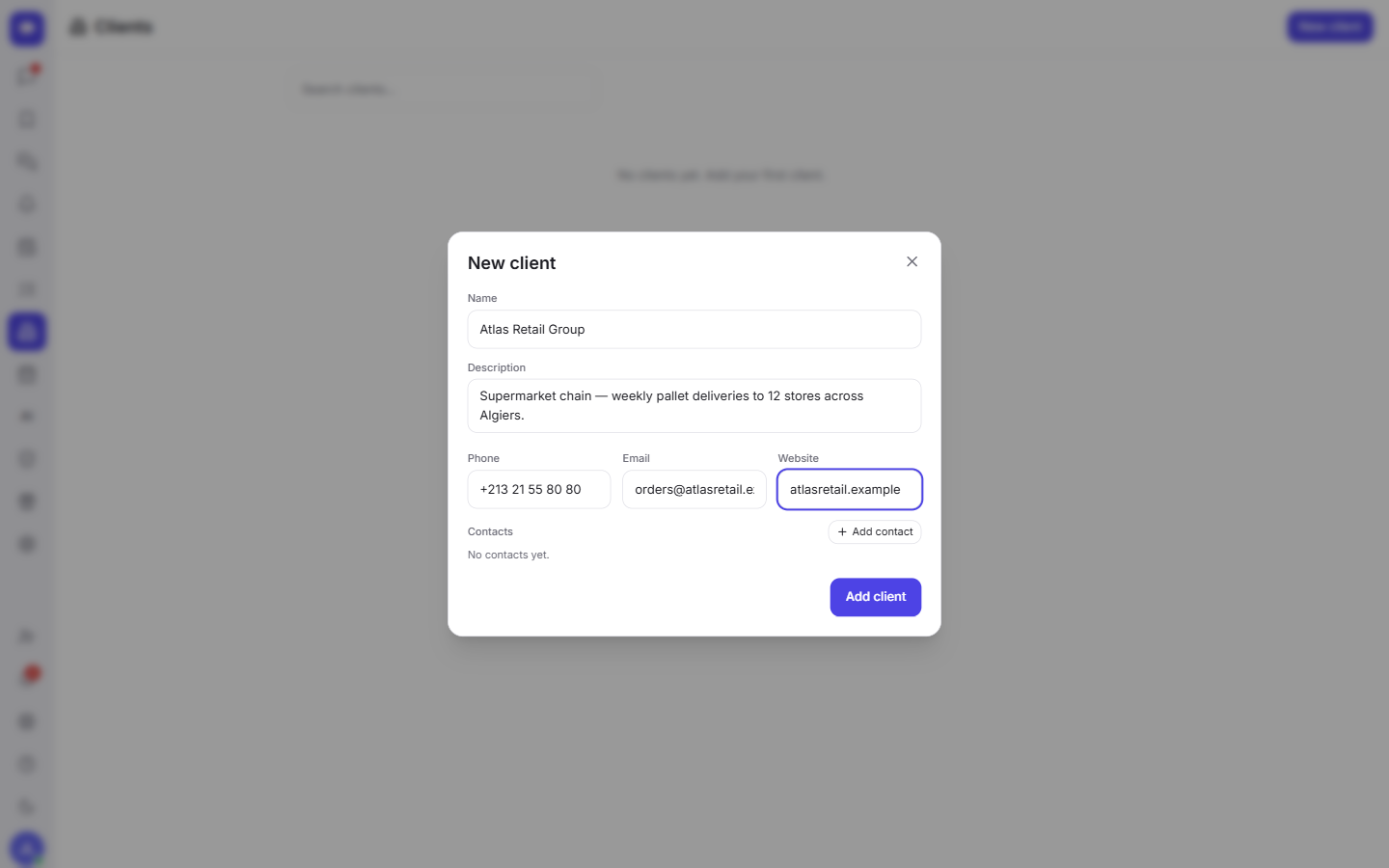
Fill in what you have and save. You do not need every field — a name and a phone number is a perfectly good start, and you can come back and add the rest later.
Read your directory at a glance
Once you have a few clients in, the directory does the summarizing for you. Each client gets its own card showing the number of contacts on the record, how many open deals you have with them, and their contact details — so you can scan the whole list without opening anything.
At the top, the header gives you the headline numbers: the total number of clients you are tracking, and your pipeline value — the combined value of the deals you have open. It is a quick read on how much business is in flight, right when you open the tab.
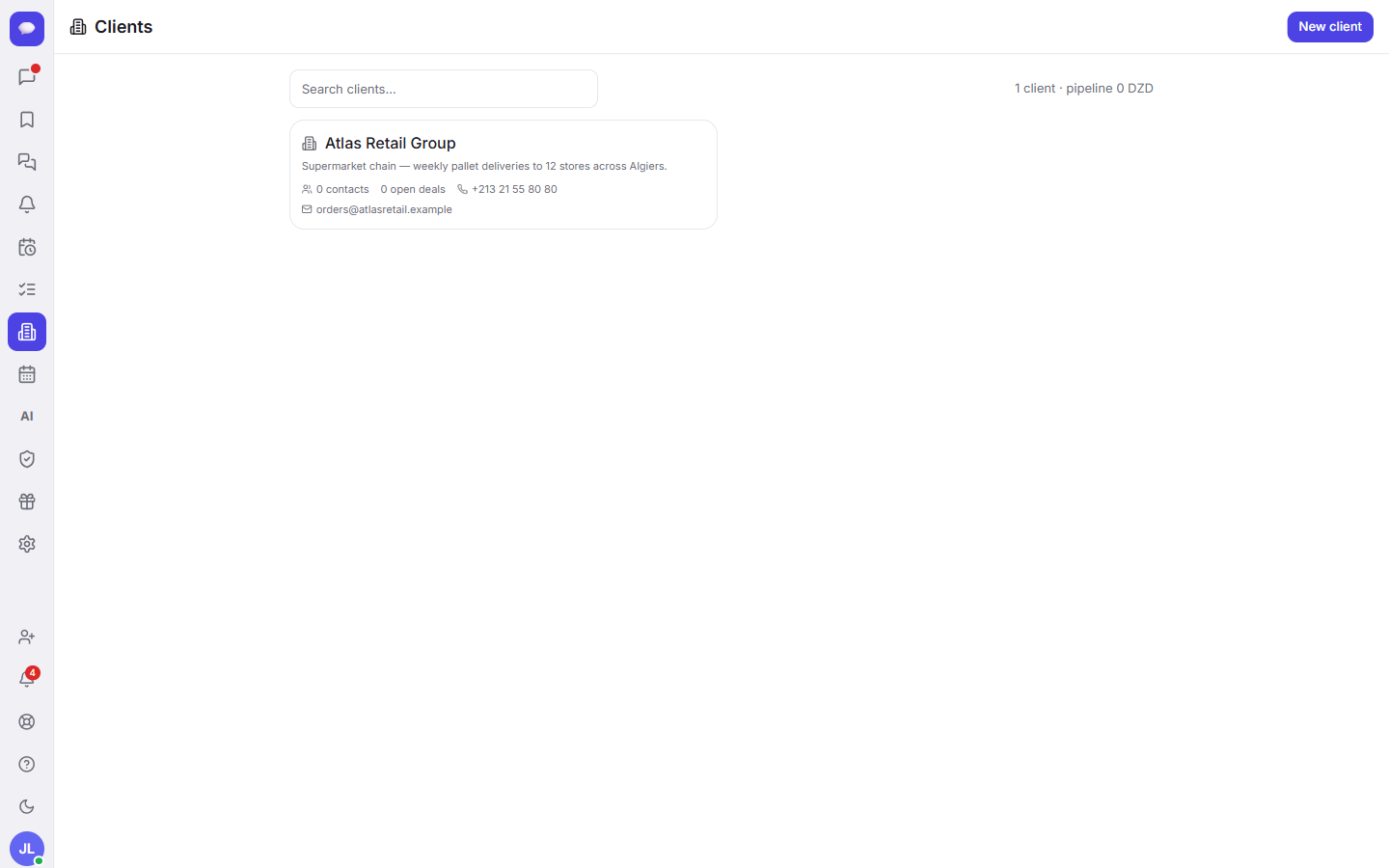
When the list grows, you do not have to scroll. Use the search box to jump straight to a client by name — handy when a call comes in and you need their details in a hurry.
Connect a client to the deal you are chasing
The clients directory is not an island. It works together with the Prospection pipeline boards, where you move each deal through stages from first contact to closed. Because the two are connected, the deal you are tracking and the client it belongs to stay linked — open a client and you can see what you are working on with them, and the open-deals count and pipeline value on the directory stay honest.
If you are new to moving cards across stages, our guide on tasks and boards covers the same drag-and-drop idea you will use on the Prospection boards. And if your client work is split across teams or projects, organizing your team into channels keeps each client's conversation in its own tidy space — right next to its record in the directory.
If you have not set up a workspace yet, you can start a free Fada workspace and add your first client in a couple of minutes.
A few things worth knowing
Fada is free to start, with no credit card required, so you can build out your clients directory before you decide on anything. When you are ready for the whole team, Business is one flat monthly price for everyone — not a charge per person — so adding teammates never inflates the bill.
Everything works fully in your team's languages, with comfortable multilingual reading, so your directory reads naturally whichever language your team uses. If you need to keep client data on your own servers, Fada can be self-hosted. And reminders about a deal reach you through standard web push notifications — no separate app-store download needed.
A clean clients directory pays off the first time a client calls and you have their details, their deals, and the conversation about them all in one place. Add a couple of clients today, link them to your Prospection board, and let the directory keep score for you. Start a free Fada workspace and bring your client list home.
Bring your team together on Fada
Create your workspaceKeep reading
Connect WhatsApp to Fada: get customer messages in your team inbox
A step-by-step guide to linking your WhatsApp Business number to Fada with the official Cloud API — so customer messages land in your team inbox and everyone replies from one place. Includes every setting, link, and the gotchas that trip people up.
Run your clients, your team and your AI teammates in one workspace
Freelancers, small businesses and agencies usually run client work across a chat app, a CRM, a task tool and a pile of AI tabs. Here is what changes when clients, team and AI teammates live in one workspace — including actions over MCP.