How to invite your team to Fada (and set the right roles)
Create an invite link, bring teammates into your workspace, and choose who is an owner, admin or member — step by step, with screenshots.
Published 16 June 2026 · 4 min read · Fada
A workspace is only useful once your team is in it. The good news: getting everyone into Fada takes about a minute. You create one invite link, share it however you normally talk to your team, and they join by picking a name and password. After that, you decide who can run the place and who is just there to work. This guide walks through both halves — bringing people in, and setting the right roles — with screenshots at each step.
If you have not set up your workspace yet, start with getting started with Fada. Once you have a workspace, come back here to fill it with people.
Invite your team with a link
The fastest way to add people is a shareable invite link. Anyone who opens it can join your workspace — no email setup, no waiting for someone to approve each request.
Step 1 — Open the invite dialog
Look for the Invite button in the sidebar header. There is also an invite icon (a person with a +) in the left rail if you prefer. Either one opens the same dialog.
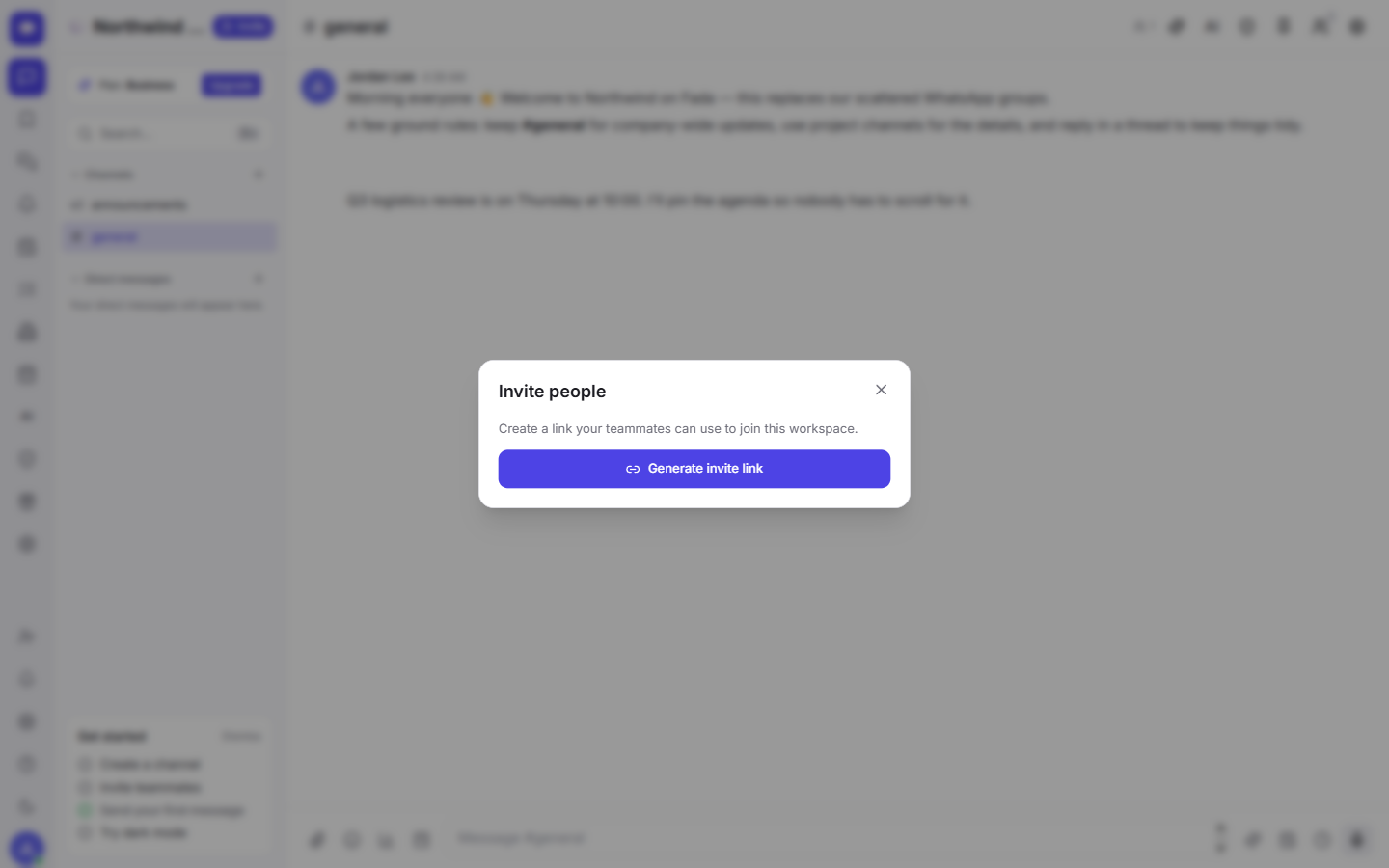
In the dialog, select Generate invite link. Fada creates a private link for your workspace that looks like fadadz.com/invite/ followed by a long token.
Step 2 — Copy the link and share it
Select Copy link. That is all you need. Paste it anywhere you already reach your team — a WhatsApp group, a text message, an email, even a printed note in the office.
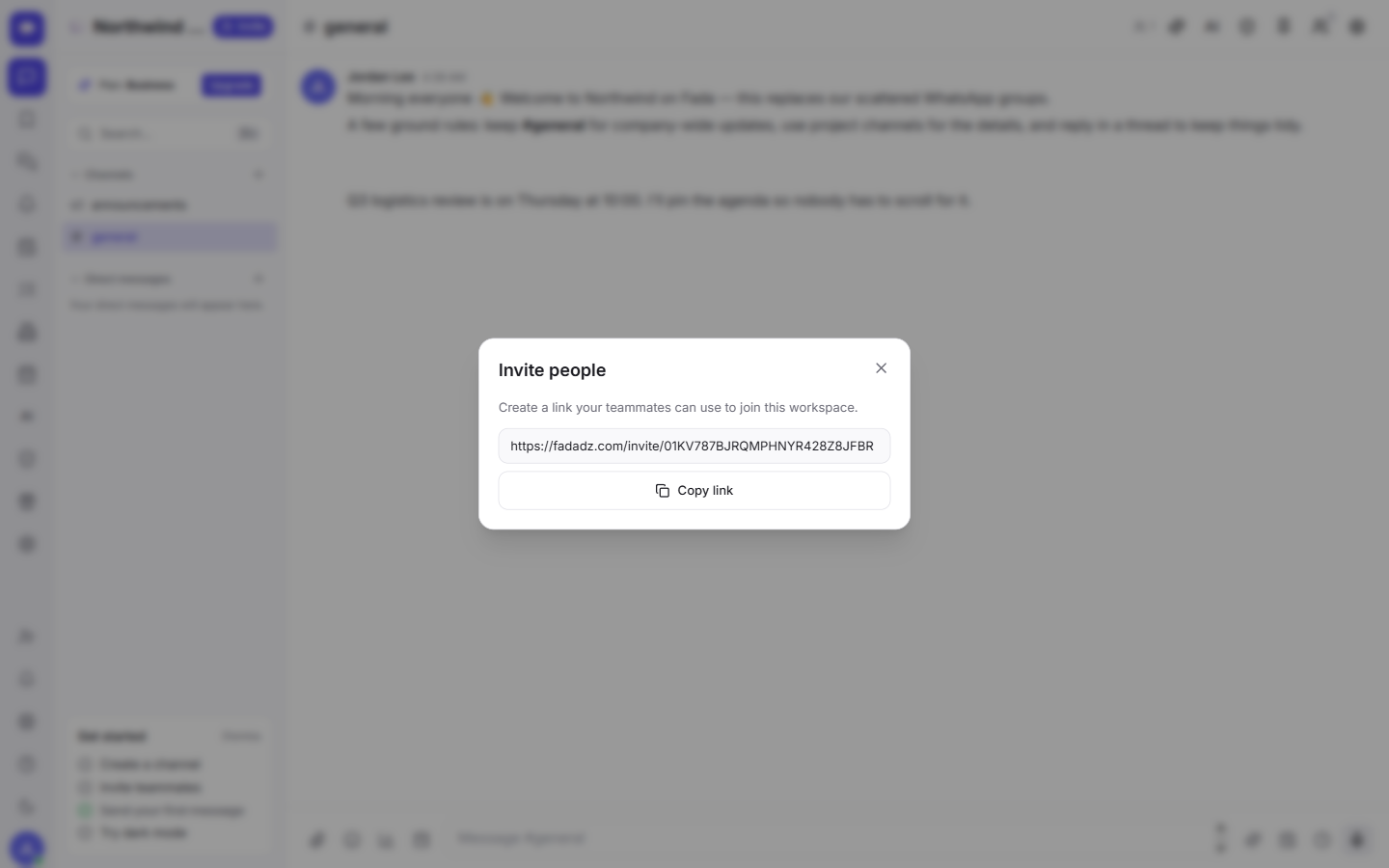
The link is for your workspace specifically, so only people you send it to will use it. Share it with the people you want, and skip anyone you do not.
Step 3 — Your teammate joins
When a teammate opens the link, they fill in their name, email and a password, then select Join workspace. That is the whole sign-up — they land straight inside, no extra steps.
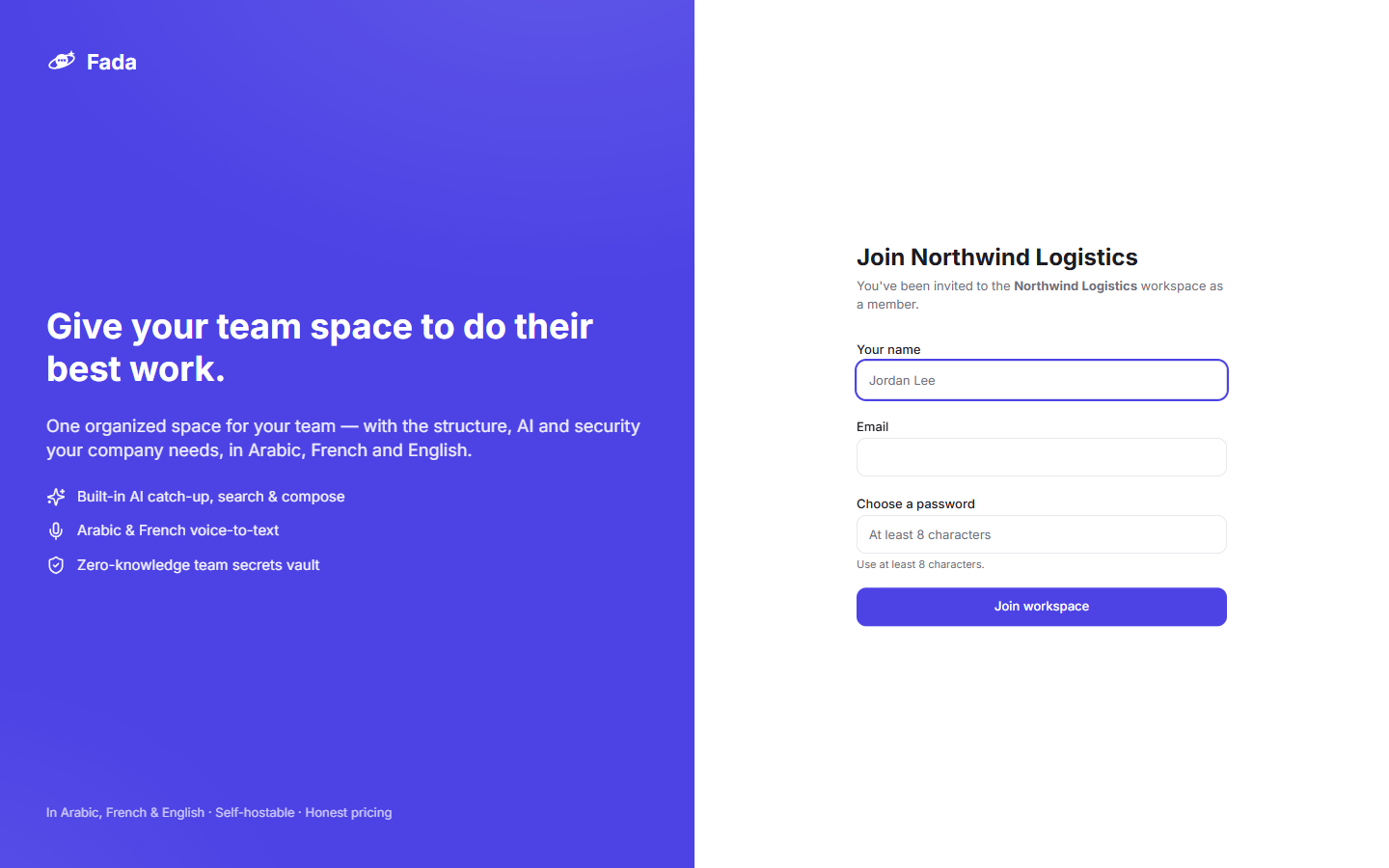
New members can immediately see and join the public channels in your workspace, so they are not staring at an empty screen. If you have not organized your channels yet, set up channels for your team first so newcomers know where to go.
Choose the right role for each person
Every member of a Fada workspace has one of three roles: owner, admin or member. Picking the right one keeps your workspace tidy and safe — most people should be plain members.
- Owner — full control of the workspace. This is usually you, the person who created it.
- Admin — a trusted helper who can manage the workspace alongside you.
- Member — everyone else. They chat, share files and join public channels, but they do not run the workspace.
The practical difference: owners and admins can open the Admin console; members cannot. The Admin console is where workspace settings and the member list live, so only give admin to people you would trust to manage your team.
Change a role or remove someone
Roles are not set in stone. To promote, demote or remove a person, open Admin, then Members. From that list you can change anyone's role or deactivate them — for example, when someone leaves the company.
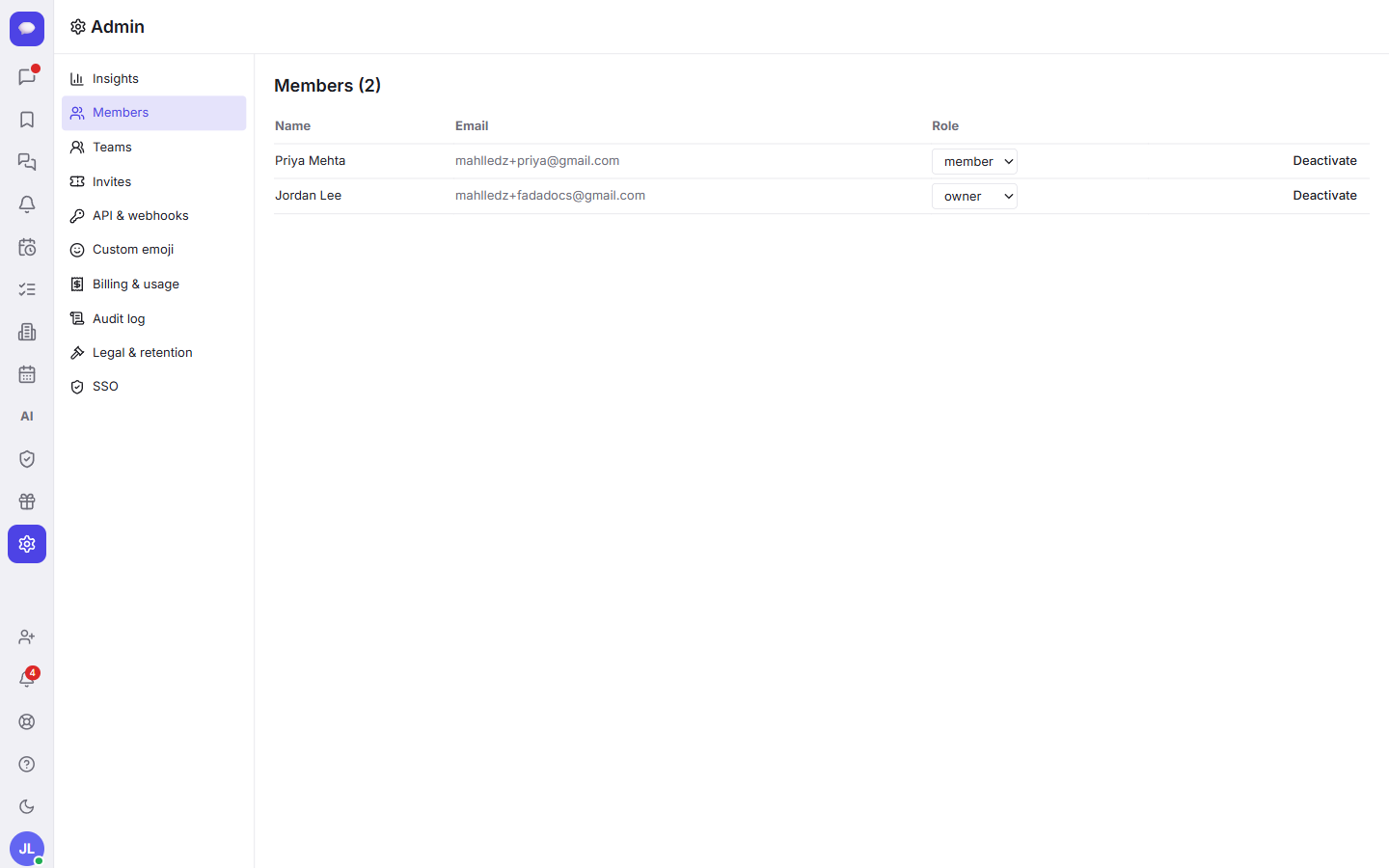
Deactivating someone is cleaner than deleting a chat group: their access ends, but the channels, files and decisions they were part of stay where they belong. For a fuller tour of everything in the console, see managing your workspace as an admin.
A few things worth knowing
- It is free to start, with no credit card. Invite your whole team and try it before you ever think about paying.
- Business is one flat monthly price for the whole team — not per user. So inviting more people never makes your bill jump. Add the whole company without watching a meter.
- your team can work naturally. When someone joins, the app stays comfortable to read in the language they use every day — nothing feels bolted on.
- No app-store app required. Background notifications use standard web push, so teammates get pinged on desktop and mobile without installing anything special.
Bring your team in today
Inviting people to Fada is two quick jobs: generate a link and share it, then set who is an owner, admin or member. Most of your team are plain members, a couple of trusted people are admins, and you keep ownership. Once everyone is in, the day-to-day chatting feels familiar — but now your decisions, files and channels live in one organized place.
Ready to bring your team together? Start a free Fada workspace, generate your invite link, and have everyone inside in the next few minutes.
Bring your team together on Fada
Create your workspaceKeep reading
Getting started with Fada: create your workspace in under a minute
A step-by-step guide to creating your Fada workspace, finding your way around the app, and sending your first message — with a screenshot of every step.
Manage your workspace: members, billing and insights
The Admin console gives owners and admins one place to manage people, see adoption insights, handle billing, and control security.