Manage your workspace: members, billing and insights
The Admin console gives owners and admins one place to manage people, see adoption insights, handle billing, and control security.
Published 10 June 2026 · 4 min read · Fada
Running a team workspace shouldn't mean hunting through five different settings screens. In Fada, everything an owner or admin needs sits in one place: the Admin tab. From there you can see how your team is actually using the app, change who can do what, handle your plan, and turn on the stronger security controls larger teams need. This guide walks you through it.
Where to find the Admin console
If you're an owner or admin, look in the left rail (the column of icons down the side of the app). You'll see an Admin tab there. Regular members don't see it at all, so you don't have to worry about anyone wandering into your settings.
Open it and you'll find these sections: Insights, Members, Teams, Invites, API & webhooks, Custom emoji, Billing & usage, Audit log, Legal & retention, and SSO. We'll cover the ones you'll use most.
Insights: see how your team really uses Fada
The first thing you'll land on is Insights — a simple adoption dashboard. Instead of guessing whether people have settled into the app, you get the numbers in plain sight: how many accounts are registered, how many new people signed up, sign-ins, messages sent, reactions, files shared, and how much your team is leaning on the built-in AI.
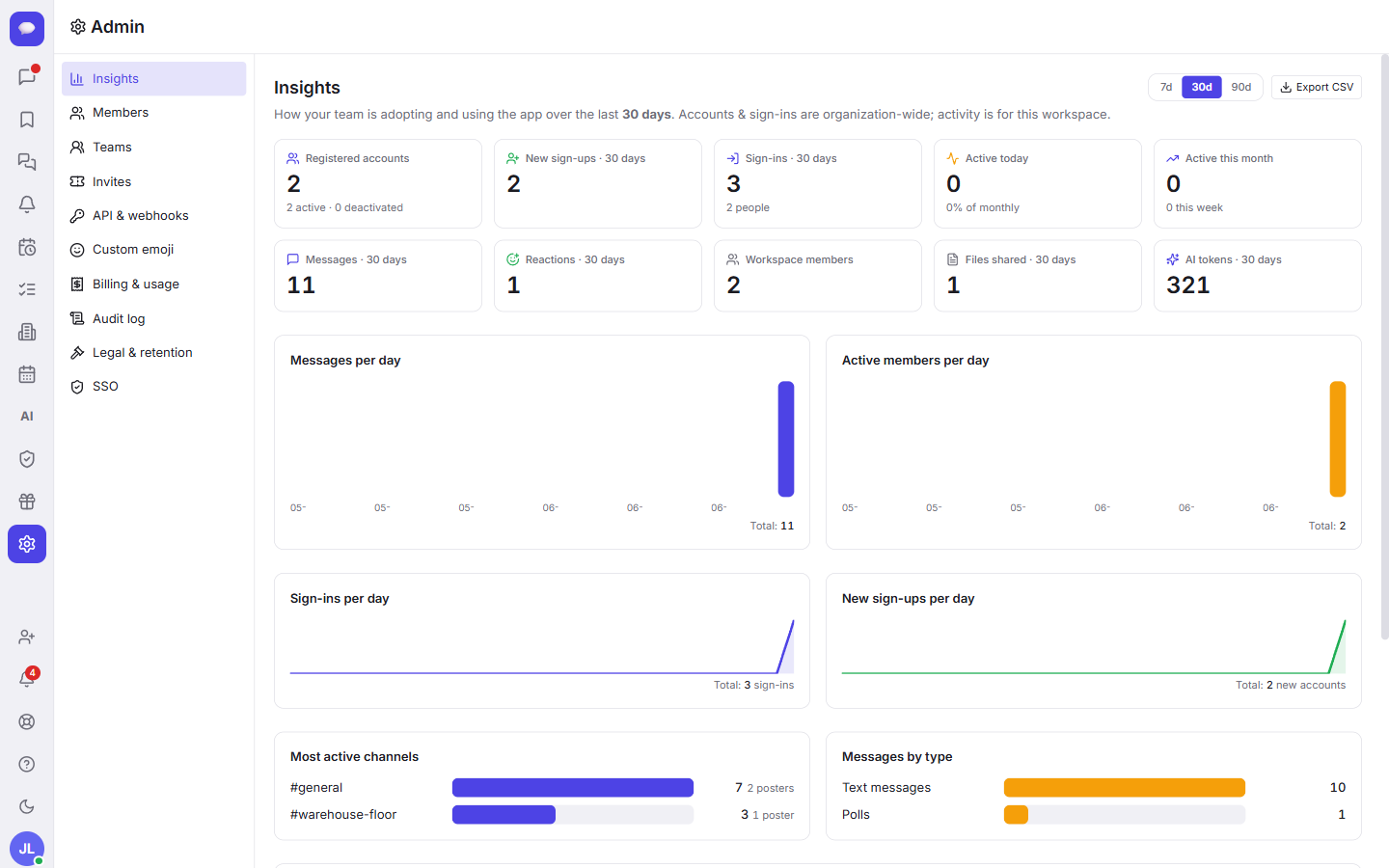
You can switch the charts between the last 7, 30, or 90 days to spot trends, and there's an Export CSV button if you'd rather pull the figures into a spreadsheet for your own reporting. It's the easiest way to confirm a rollout is sticking — or to notice a team that needs a nudge.
Members: control who can do what
Open Members to manage the people in your workspace. Each person has a role, and you can change it here in one place.
Change someone's role
There are three roles:
- Owner — full control, including billing.
- Admin — can manage people and settings.
- Member — a regular team member.
Find the person in the list and switch their role to match what they should be able to do. Promote a trusted colleague to admin so they can share the load, or step someone back down to member.
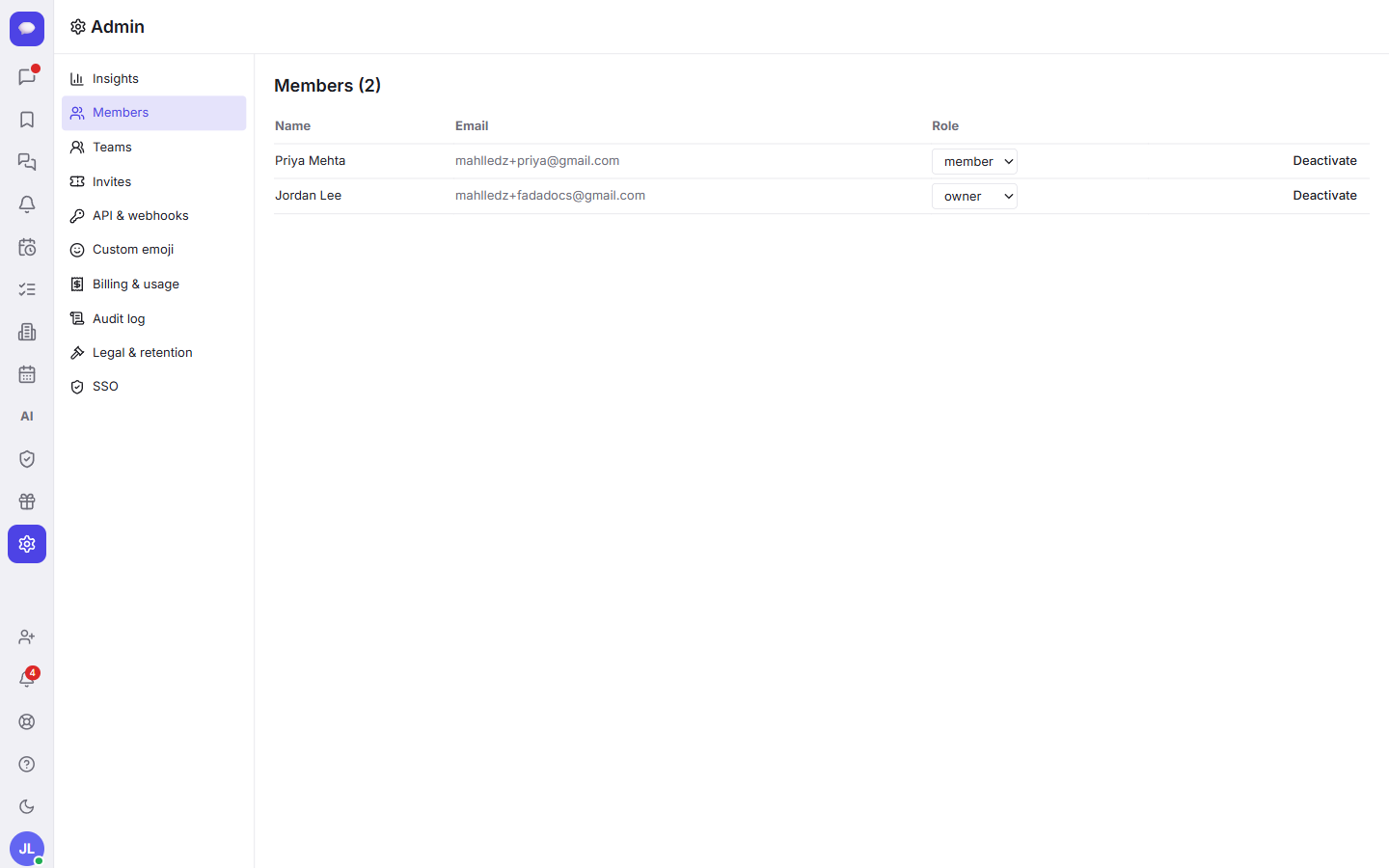
Deactivate someone who's left
When a person leaves the team, you don't delete them — you deactivate them right from the same Members list. That cuts off their access while keeping the history of their work intact.
When you're ready to bring new people in, head to Invites — there's a full walkthrough in how to invite your team.
Billing & usage: your plan at a glance
The Billing & usage section shows your current plan and how much of it your team is actually using. No surprises, no digging through invoices to figure out where you stand.
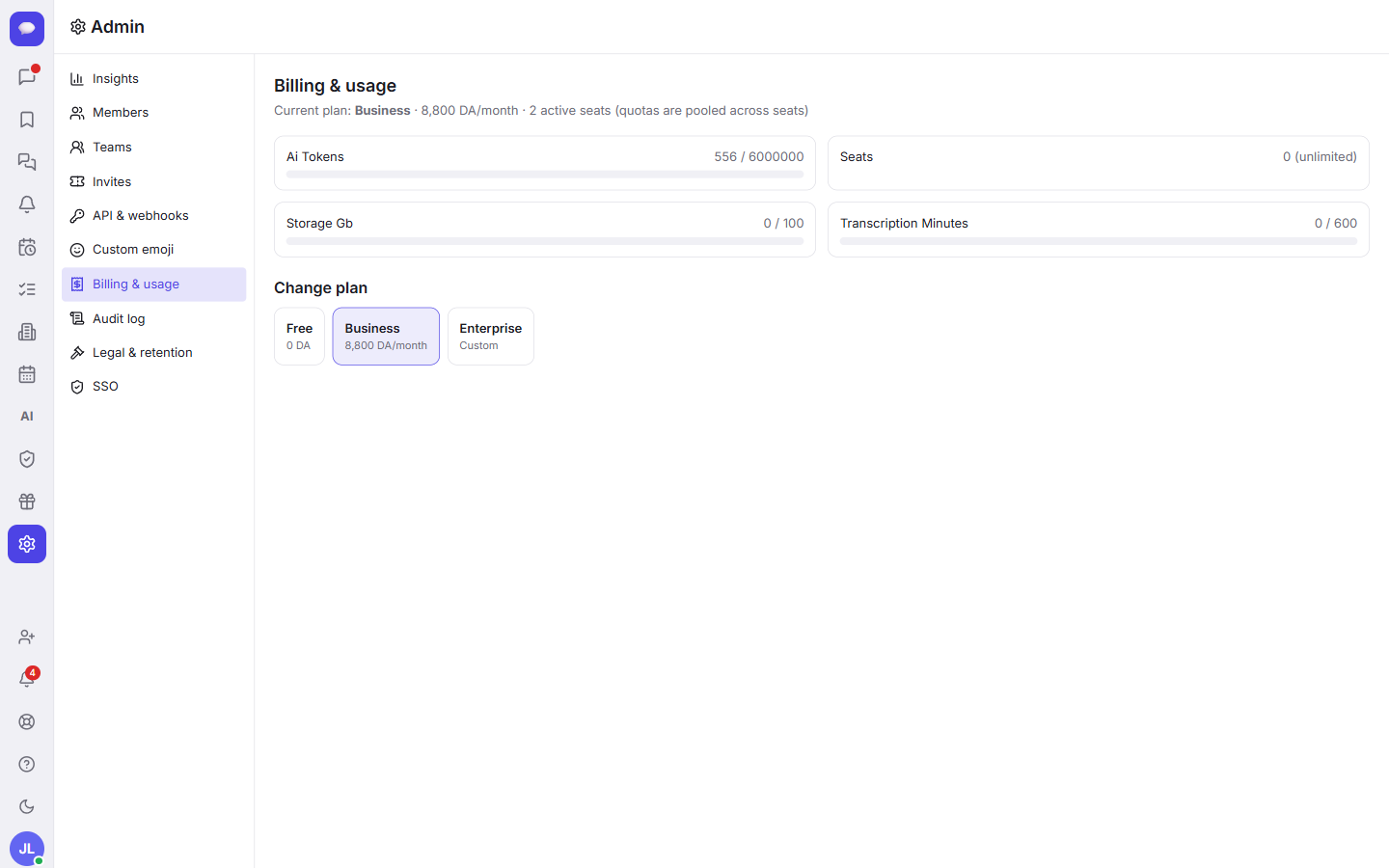
Fada is free to start with no credit card, so you can get the whole team in before you pay anything. When you do upgrade, Business is one flat monthly price for the whole team — not a per-seat charge — so adding more people never quietly inflates your bill. This screen is where you keep an eye on all of it.
Security and compliance for larger teams
Smaller teams can ignore this part. But if you're a growing or regulated business, Fada has the controls you'd expect on Enterprise:
- Audit log — a record of important actions taken in your workspace, so you can see who did what and when.
- Legal & retention — data-retention rules to keep (or clear out) records on a schedule, with legal-hold controls.
- SSO and SCIM — company identity-provider sign-in plus automatic account provisioning as staff join and leave.
While you're tightening things up, two more guides are worth a look: keeping shared passwords and keys safe in the team vault, and making sure everyone actually gets pinged with notifications and web push — which work through standard web push, with no separate app-store download required.
A note on the rest
The remaining sections do what their names suggest. Teams groups people into sub-teams, API & webhooks connects Fada to your other tools, and Custom emoji lets you add your own reactions — a small thing that does a lot for how a workspace feels.
And because Fada keeps the admin console readable for multilingual teams — your admin console reads naturally for whoever's running it. If you'd rather keep everything on your own servers, the platform can be self-hosted too.
Wrapping up
The Admin tab is your single cockpit: see adoption in Insights, manage people in Members, watch your plan in Billing & usage, and reach for the audit log, retention, and SSO controls when your team grows into them. It's all one click from the left rail. Ready to set up your own? Start a free Fada workspace — no credit card needed — and you'll have your console up in minutes.
Bring your team together on Fada
Create your workspaceKeep reading
How to invite your team to Fada (and set the right roles)
Create an invite link, bring teammates into your workspace, and choose who is an owner, admin or member — step by step, with screenshots.
Connect WhatsApp to Fada: get customer messages in your team inbox
A step-by-step guide to linking your WhatsApp Business number to Fada with the official Cloud API — so customer messages land in your team inbox and everyone replies from one place. Includes every setting, link, and the gotchas that trip people up.