Track work with task boards, pipelines and projects
Turn talk into action with Kanban task boards — plus sales pipelines and project boards — all inside Fada.
Published 11 June 2026 · 5 min read · Fada
Chats are great for deciding what to do. They are terrible at remembering it. A decision gets made on a busy Tuesday, three people say "noted", and by Friday nobody can say who is actually doing it or whether it is done. Fada fixes that with task boards: a simple, visual place where every job is a card you can see, assign and move along until it is finished. This guide shows you how to set one up, plus the two other board types Fada offers for sales and bigger projects.
Open the Tasks tab
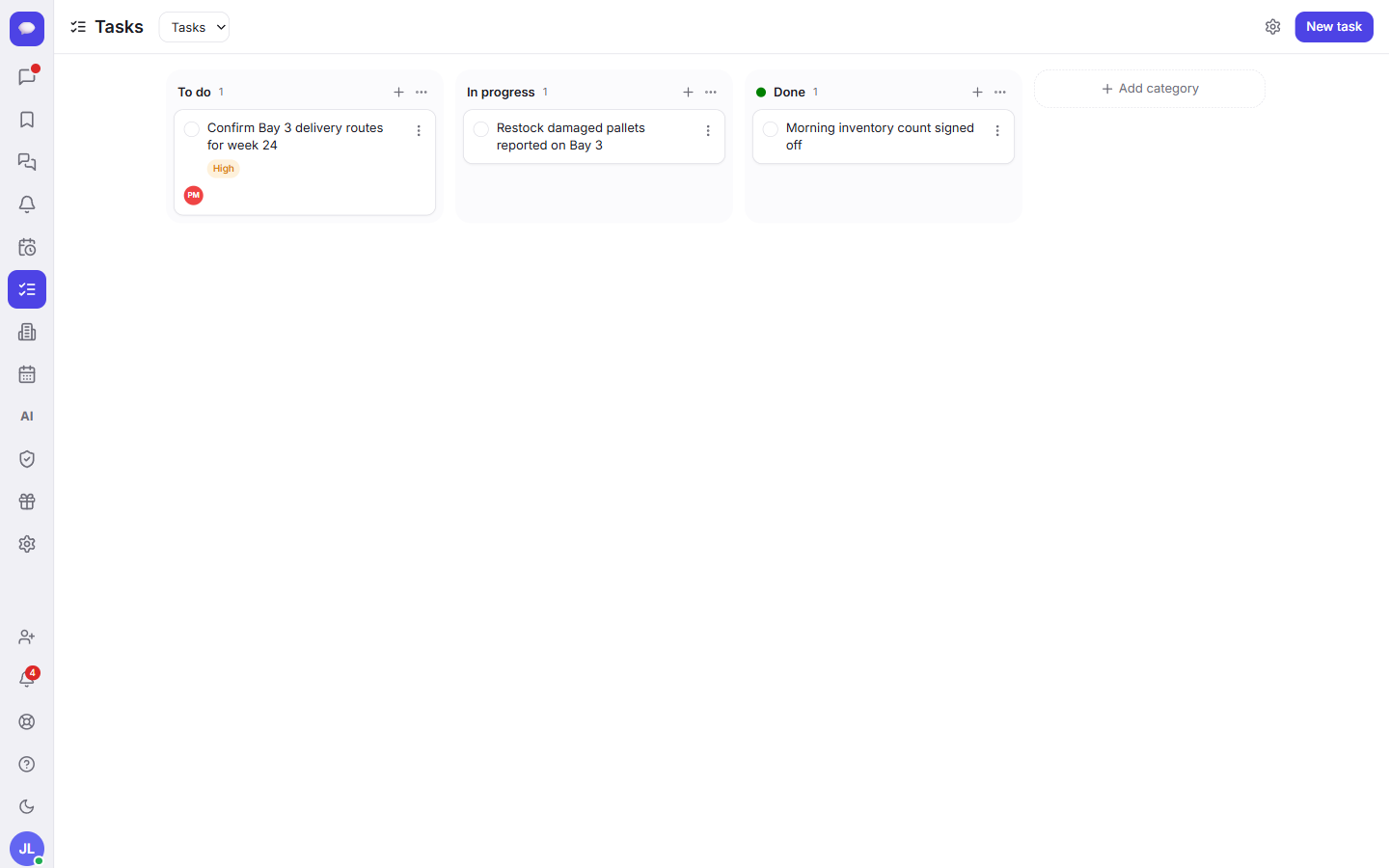
Everything lives in one place. In the left rail of Fada, click the Tasks tab. That opens your boards — the visual lists where work lives.
If this is your first time, you will see a board with three columns already set up: To do, In progress and Done. That is a Kanban board, and it is the heart of how Fada tracks work. Each column is a stage, and each job is a card that travels left to right as it gets done.
Add your own columns
The three default columns suit most small teams, but you are not stuck with them. Click Add category to create more columns — for example a Waiting on client stage, or a Review step before Done. Name them to match how your team actually works.
Add your first task
A card is more than a line of text. Click to create a New task and a detailed form opens. You can fill in as much or as little as you like:
- Title — what needs doing, in plain words.
- Description — the details, links or context.
- Priority — pick from No priority, Low, Medium, High or Urgent, so the important jobs stand out.
- Column — which stage the card starts in.
- Due date — when it is needed.
- Reminder — a nudge before the due date so nothing slips. (Want reminders across the whole app? See our guide on reminders.)
- Labels — tags like "design" or "billing" to group related work.
- Assignees — the people responsible.
- Subtasks — break a big job into a checklist of smaller steps.
You do not need every field. A title and an assignee is plenty to start. Add the rest as the job gets clearer.
Read a card at a glance
Once a card is on the board, it shows a priority badge and the avatars of everyone assigned to it. So you can scan a column and instantly see what is urgent and who owns it, without opening anything.
Move work along
This is the satisfying part. As a job progresses, drag its card from To do into In progress, and finally into Done. The board becomes a live picture of your week: what is waiting, what is being worked on right now, and what is finished. No status meeting required — anyone can open the Tasks tab and see exactly where things stand.
Pick the right kind of board
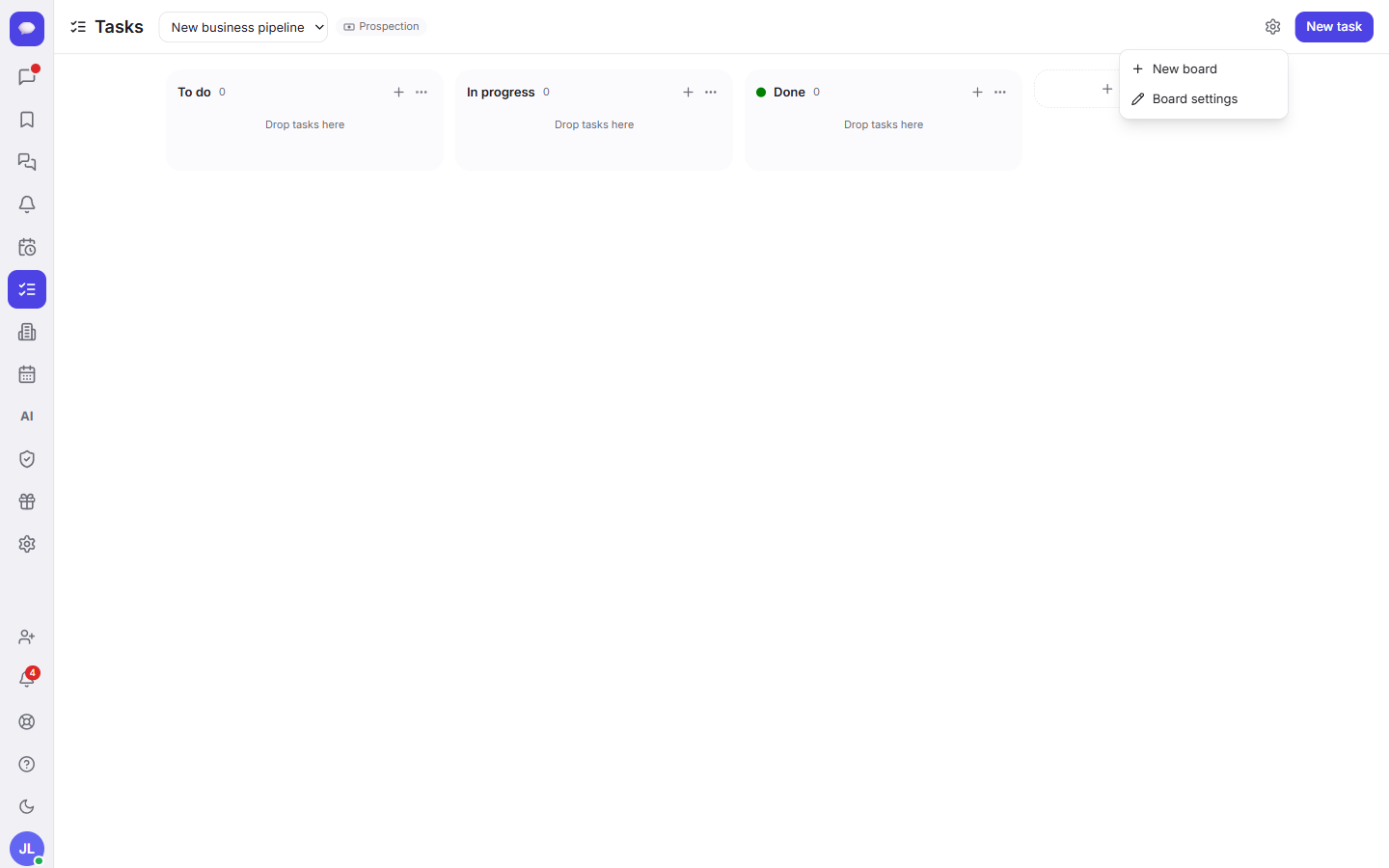
A plain to-do board is perfect for everyday work, but Fada has two more board types for specific jobs. To switch between boards, use the board switcher at the top of the Tasks view. To create a new one, open Board actions and choose New board. You will be offered three types:
- Tasks — a plain to-do board, the Kanban setup you have just seen. Best for general team work.
- Prospection — a sales pipeline. Instead of "to do / done", the columns become stages of a deal, so you can track leads from first contact to closed.
- Project — a project board for a bigger piece of work with its own set of stages.
Tracking sales with a pipeline
A Prospection pipeline is built for following deals — each card is a potential sale moving through your stages. Best of all, it ties into Fada's Clients directory, so a deal on your pipeline connects to the customer it belongs to. If you sell anything, this is where you watch your sales actually happen. To set up the customer side, read our guide on the clients CRM.
For deadlines and meetings that come out of those tasks, your boards work nicely alongside the calendar and events, so a due date does not live in isolation.
A few things worth knowing
Fada is free to start, with no credit card needed, so you can build your first board today. When you grow, the Business plan is one flat monthly price for the whole team — not per person — so adding teammates never raises the bill. The whole app speaks your team's languages as equals, with comfortable reading, and your data can be self-hosted if you need it on your own servers. Reminders and updates reach you through standard web push, so there is no separate app to install from a store.
Boards turn the things you talk about into work you can actually see and finish. Start with one board for your busiest team, drop in the jobs already floating around your chats, and drag the first card to Done — that small move is usually the moment it clicks. Start a free Fada workspace and put your first task on the board today.
Bring your team together on Fada
Create your workspaceKeep reading
Run a poll and pin the decision in Fada
Ask the team a question, collect votes, and pin the outcome so a decision never gets lost in the scroll.
Share files, images and documents in Fada
Attach documents, images and recordings to any message — with previews — so files live with the conversation instead of getting lost.